
Importing QuickBooks Desktop Templates
If you moved from QuickBooks Desktop to QuickBooks Online, you can bring your Desktop invoice, estimate, purchase order, credit memo and statement templates with you. Missing Toolkit: Templates turns each one into a Word template that fills in from QuickBooks Online, laid out the way your Desktop form printed.
Export the template from QuickBooks Desktop
Do this on the computer where QuickBooks Desktop is installed.
- Open your company file in QuickBooks Desktop.
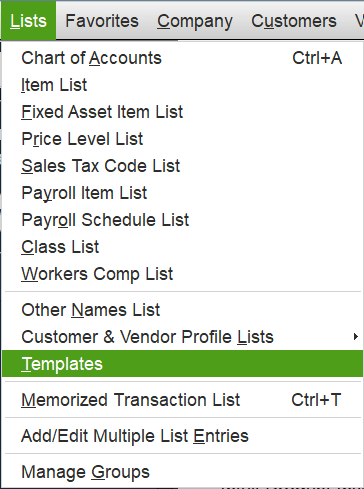
- Go to Lists → Templates.
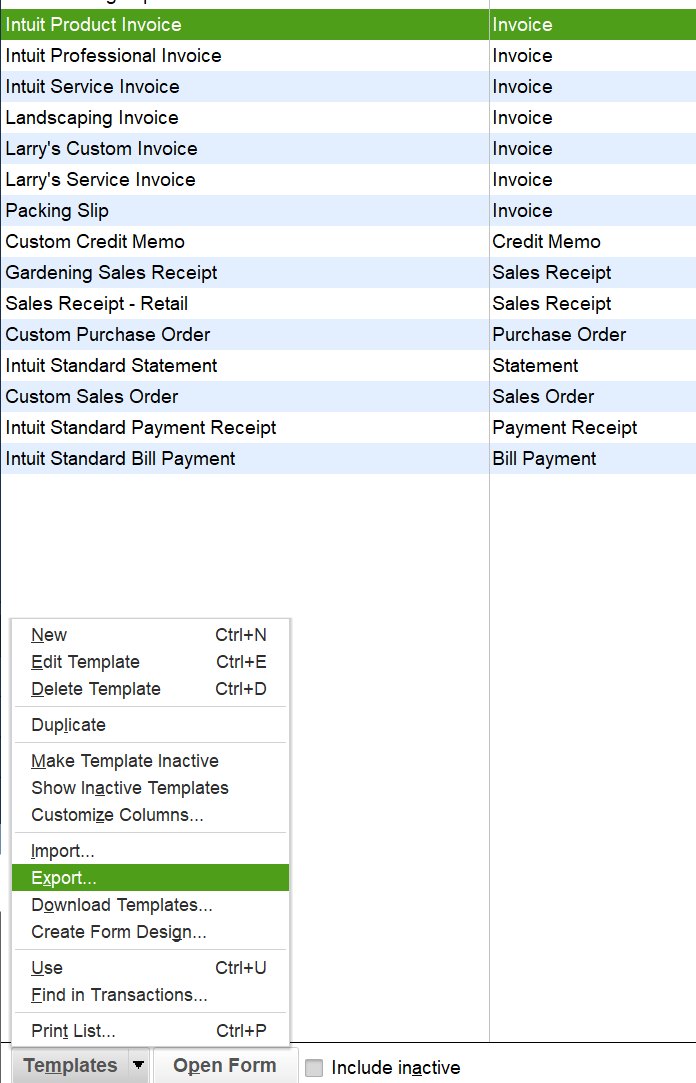
- Click the template you want to bring across, such as Intuit Product Invoice or your own copy of it.
- Click the Templates button at the bottom of the window, then Export.
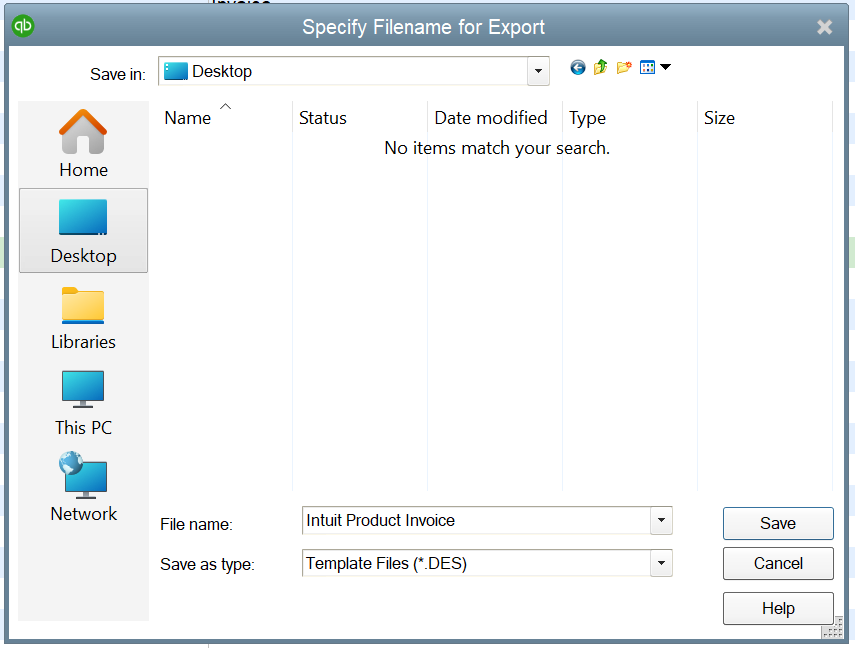
- Choose where to save the file and click Save. QuickBooks saves it as a
.DESfile named after the template.
Repeat for each template you want, one file per template.
Import it into Missing Toolkit: Templates
- Go to Templates and click New Template, then Import from QuickBooks Desktop.
- Document: choose the
.DESfile. Missing Toolkit: Templates reads it and deletes it straight away, so we never keep your Desktop file. - Set up: check the name and what the template is for. We guess from the template's title, so most of the time you just confirm it. If your Desktop template printed a logo, add yours and it goes in the same spot. If you haven't added a logo in Team settings yet, the one you add here becomes your team's logo too when you save.
- Review: see each Desktop field and what it prints now. Most fill in from QuickBooks Online automatically.
- Preview and save: pick one of your recent records, check the result, then click Save template.
Import one template at a time, so you can check each one before the next. Imported templates have a From QuickBooks Desktop badge on the Templates page.
Fields QuickBooks Online doesn't have
Some Desktop fields, like Rep or F.O.B., have no built-in place in QuickBooks Online. When you converted, Intuit may have moved them into custom fields.
- If you have a custom field with the same name, Missing Toolkit: Templates uses it automatically.
- If the name is close, such as Sales Rep for Rep, you'll see a suggestion. Click Use it to accept it.
- Anything else prints a marker in square brackets, like
[Rep], so you can spot it. Open the template in Word and replace the marker with the right placeholder, or delete it.
See Placeholders for the full list.
After you save
The imported template is an ordinary Word template. Download it, change anything you like in Microsoft Word, and replace the document from the template's page. Desktop's status stamps, such as PAID, aren't carried across.
If a file can't be read
If Missing Toolkit: Templates can't read your file, export it from QuickBooks Desktop again and try once more. You can also tick send it to Missing Toolkit before you import, and if the file can't be read we keep it so we can add support for it. Otherwise nothing is kept.