
PrintNode
PrintNode sends a generated PDF straight to a printer on your network, so a packing slip or a box label goes from QuickBooks to paper without a download in between. PrintNode is a separate service with its own account; Missing Toolkit: Templates talks to it with an API key you paste in once.
What you need
- A free PrintNode account from printnode.com. The free plan covers 50 prints a month on one computer, which is enough to try it. Busier teams pay PrintNode directly for more.
- The PrintNode client installed on the computer the printer is attached to, signed in to that account. It runs on Windows, macOS, and Linux, and on Windows it can run as a service so it does not need anyone logged in.
- An API key, created on the API Keys page of your PrintNode account.
Connecting
- Go to Team > Integrations
- Under Apps, paste your API key into the PrintNode API key field
- Click Connect
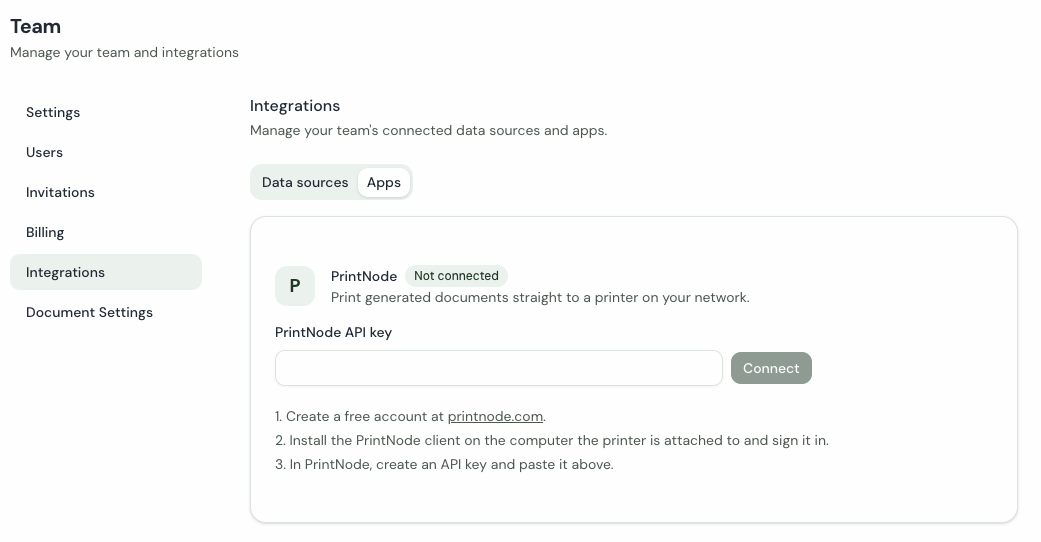
Missing Toolkit: Templates checks the key with PrintNode and lists every printer the PrintNode client has reported. Only the team owner can connect or disconnect. The key is stored encrypted and is never shown again; the card shows its last four characters so you can tell which key it is.
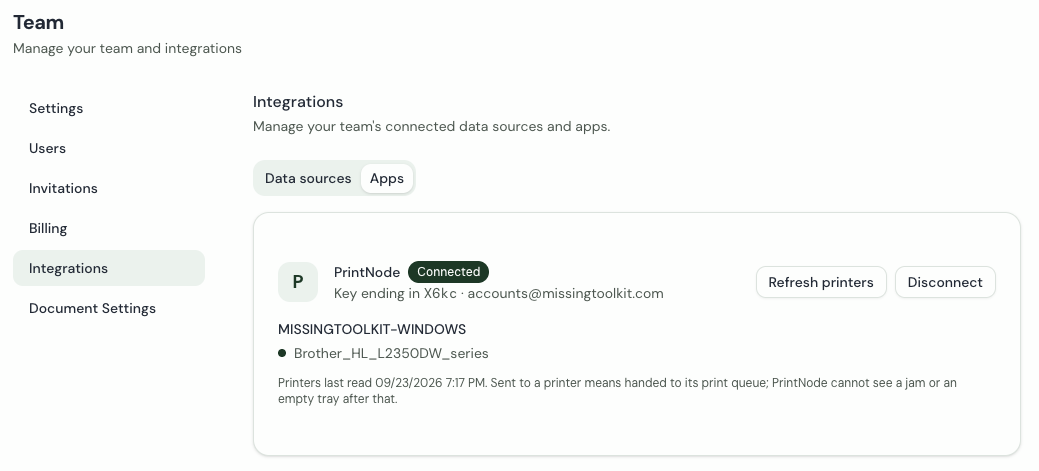
If a printer is missing, make sure the PrintNode client is running and signed in on that computer, then click Refresh printers. The list also refreshes itself a few minutes after it was last read.
Printing a document
- Open a record and click Generate Document
- Choose a template
- Under Output, pick a printer from the Print to group instead of a download format
- Set Copies if the printer supports more than one
- Click Generate & Print
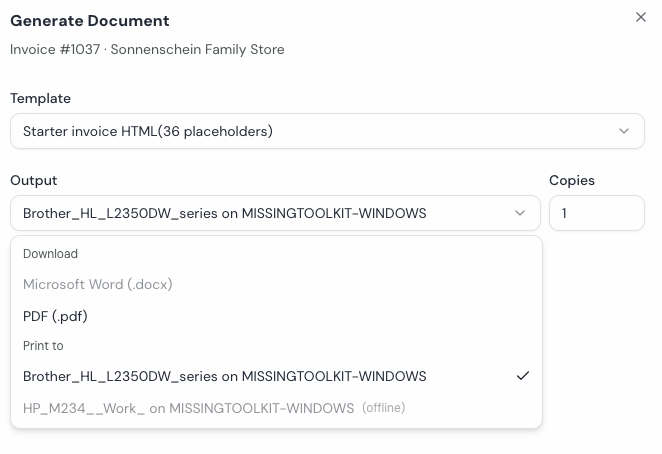
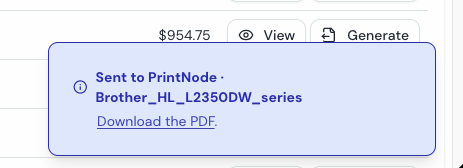
The document is generated as a PDF and sent to PrintNode, which hands it to the printer's computer. Designed templates, per-line templates, and box labels all print the same way, as one job. A notification follows the job from sent to done and carries a download link, so the PDF is yours whatever the printer does.
Printers whose computer is not connected to PrintNode are shown as offline and cannot be chosen. If the computer goes offline just before a job is sent, the job is refused and the document is still available to download.
Printing again
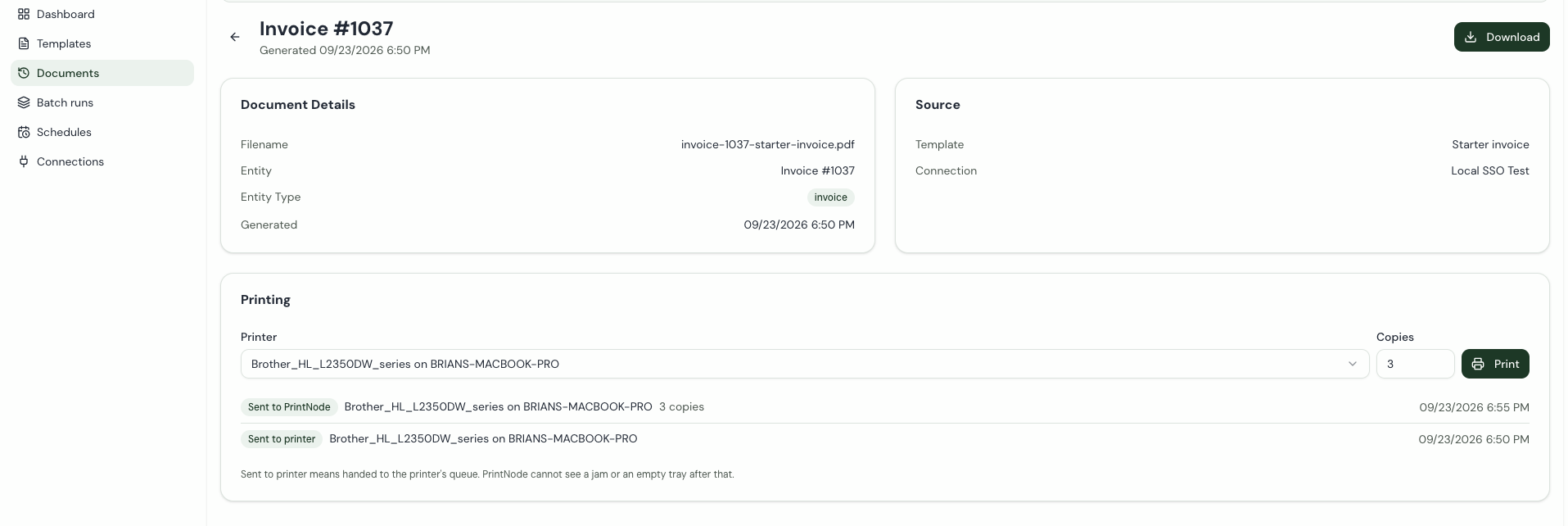
Open the document from Documents and use the Printing card to send the stored PDF to a printer again. Word documents cannot be reprinted this way; generate them again as a PDF.
What the states mean
- Sent to PrintNode — PrintNode has the job and is passing it to the computer.
- Sent to the computer — the PrintNode client on that computer has received it.
- Sent to printer — the client handed the PDF to the printer's queue. PrintNode cannot see what happens after that, so a paper jam or an empty tray will not show up here.
- Printer error — the client could not hand the job over. The message from PrintNode is shown with it.
- Expired before printing — the computer did not collect the job within an hour.
- Not sent — the job never reached PrintNode, with the reason.
Disconnecting
Click Disconnect on the PrintNode card. The saved key is removed and printers disappear from the Output menu. Documents already generated and their print history are kept.