
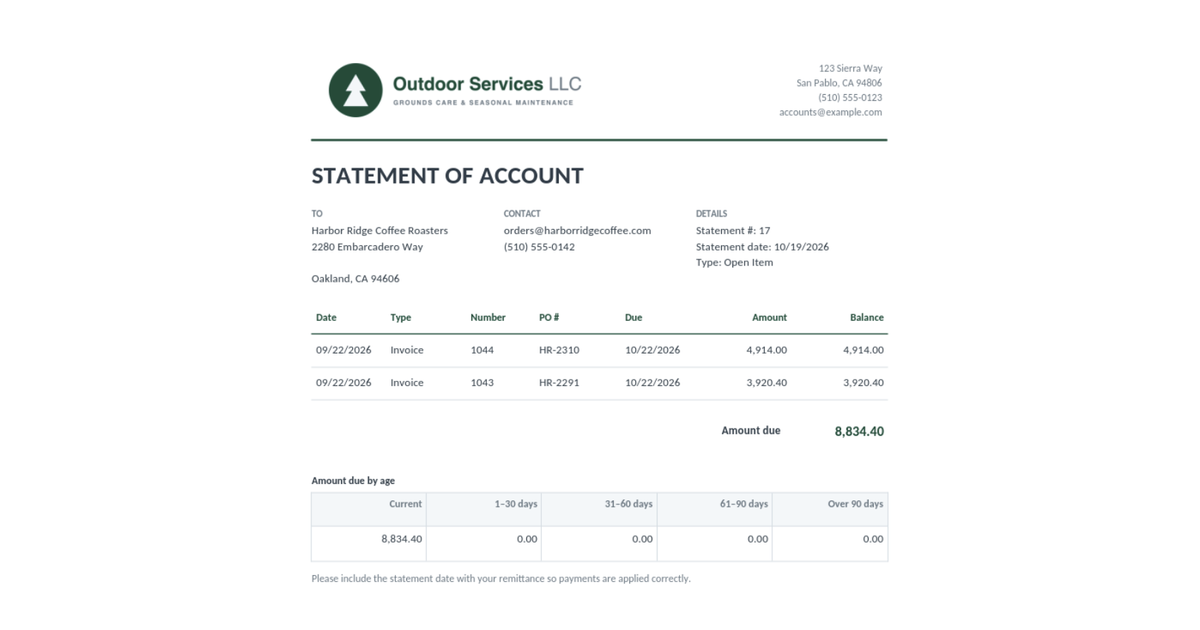
Your customer's accounts payable clerk has your statement in one hand and their own system in the other. Their system is organized by purchase order number. Your statement lists invoice numbers, dates and amounts, and no PO numbers. So the statement goes on the "figure out later" pile, and so does your payment.
QuickBooks Online can't add a PO number column to a customer statement. Statements aren't included in Custom form styles, and the custom fields you use for PO numbers on invoices don't carry over to them. Intuit's support team has confirmed this in its US community for years. There are still several ways to get the PO number in front of your customer without any extra software. This guide covers each one and its trade-offs.
Why the PO number goes missing
QuickBooks Online has no built-in PO number field on an invoice. Companies that need one add a custom field, usually called something like "P.O. Number", and switch on Print on form so it shows on the invoice. That works well for invoices.
Statements are a different form. You can choose the statement type (Balance Forward, Open Item or Transaction Statement), the dates, and a couple of settings. You can't choose the columns, and custom fields aren't offered at all. The PO number you carefully recorded on every invoice stays on the invoice.
Before you start: record the PO number in one place
Every workaround below is easier if the PO number is already on the invoice in a consistent place. If you haven't set up a custom field yet, our guide on how to add custom fields in QuickBooks Online covers the steps for each plan. In short: go to Settings, then Custom fields, add a field in the Transaction category, tick Invoice, and turn on Print on form.
Some of the options below ask you to type the PO number a second time, into a field that does reach the statement. The custom field stays the source of truth; the second copy is just for the statement.
Option 1: Copy the PO number into the statement memo
This is the workaround QuickBooks' own support team suggests most often, and it's the only one that puts the PO number on the statement itself.
Every invoice has a memo box that prints on statements but not on the invoice. In the current invoice screen it's labeled Memo on statement (hidden), and the placeholder text says it "will not show up on your invoice, but will appear on the statement." (Older screens and community answers call it Message on statement.)
- Open the invoice (or create a new one).
- Scroll to the bottom of the form, past the line items and totals.
- In Memo on statement (hidden), type the PO number, for example
PO HR-2291. - Select Save.
- Create the statement as usual. The memo is added to the end of that invoice's line in the Activity column, for example "Invoice #1043: Due 10/22/2026. PO HR-2291".
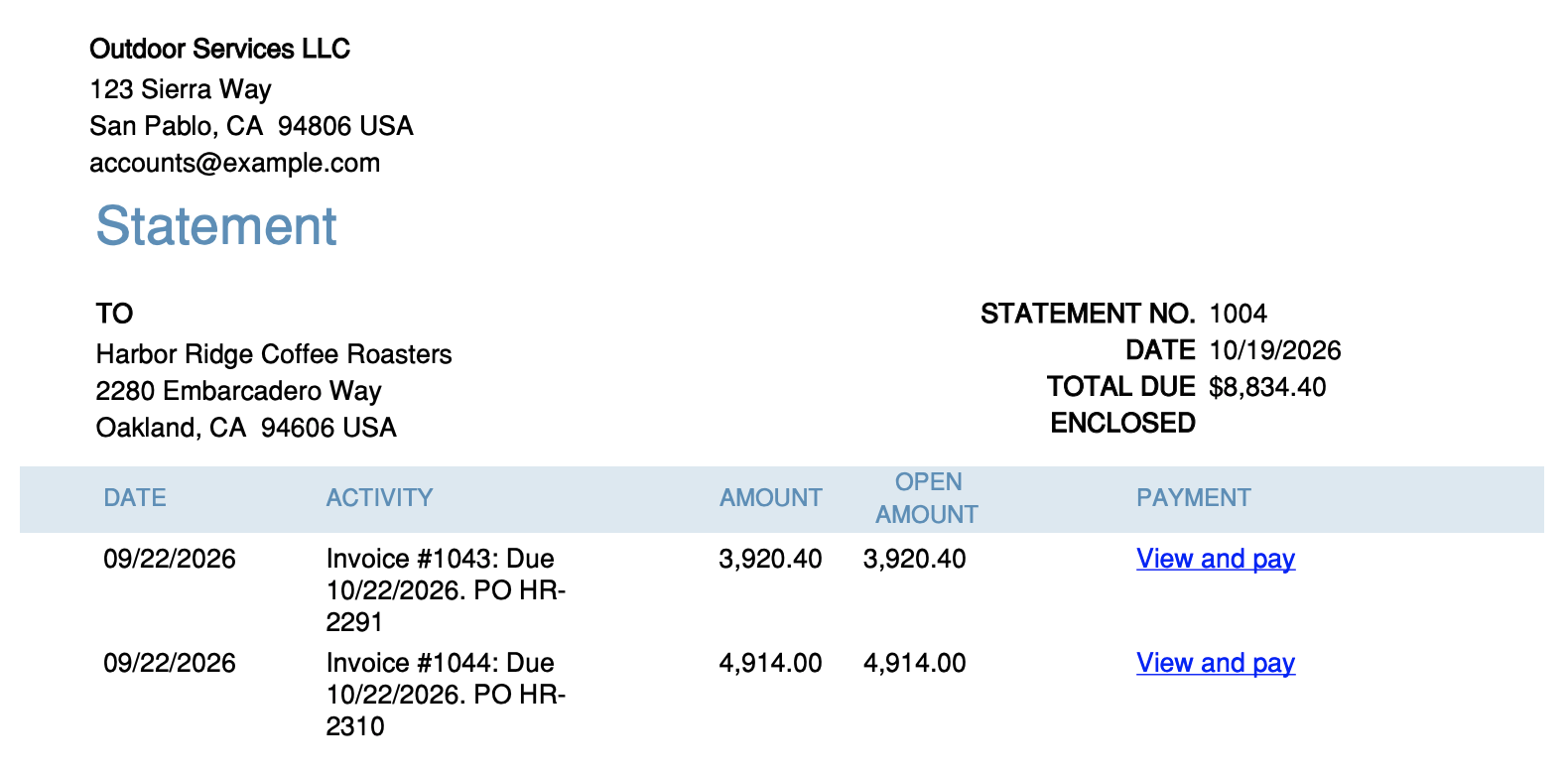
Intuit's help article on memos confirms the invoice memo appears only on customer statements, and the same is true for sales receipts and credit memos. That makes it useful: you can tag a credit memo with the PO it relates to as well.
The trade-offs:
- It's a second copy. You type the PO number into the custom field for the invoice and again into the memo for the statement. If someone corrects one, the other goes stale.
- It's one field. If you already use the memo for something else, such as a job name or an internal note, the PO number has to share the space.
- Anything in it goes to the customer. Treat this box as customer-facing. Internal notes belong somewhere else.
- Old invoices need editing. For statements covering past months, you'll have to open each invoice and add the memo before generating the statement.
- It isn't a column. The PO number is tucked into the Activity text rather than sitting in a column of its own, so a clerk still has to read each line.
Intuit updates the invoice screen from time to time. If your labels differ, look near the bottom of the form for a memo box that says it appears on the statement.
Option 2: Put the PO number in a line description
Another suggestion from QuickBooks support is to include the PO number in the Description of a line on the invoice, for example "Installation labor, PO 4500123".
This only helps if your statements show line detail. Go to Settings, then Account and settings, then Sales, and edit the Statements section. Under Detail type, change List each transaction as a single line to List each transaction including all detail lines, then select Save. Each invoice line then prints under the invoice as "--- description = amount", so a description like "12 oz cups, PO HR-2310" reaches the statement. Product and service names don't print, only descriptions.
The trade-offs:
- Statements get long. Every line of every invoice is printed, including a tax line, which can turn a one-page statement into several pages.
- Blank descriptions print as blank lines. Lines without a description show only "--- = $1,750.00", which looks odd to a customer.
- The PO number is buried. It sits inside a description rather than in its own column, so the clerk still has to look for it.
- It changes the invoice too. The description prints on the invoice, which is fine if your customer wants the PO there, but it's still a second copy of the number.
For most businesses, Option 1 is tidier. Option 2 is useful when you already put the PO number in descriptions, or when one invoice covers several POs and you need a PO per line.
Option 3: Send an Open Invoices report alongside the statement
If you'd rather not type the PO number twice, use a report that can read the custom field directly.
Open Invoices can show your PO custom field as a column, and this works on QuickBooks Online Plus as well as Advanced. Customized to one customer, it's essentially an open item statement with your PO column included.
- Go to Reports and open Open Invoices.
- Select Customize.
- Under Filters, set Filter by to Customer, leave the condition as equals, and pick the customer under Value.
- Under Columns, tick your PO custom field (it's listed by the name you gave it, such as PO Number). Untick columns your customer doesn't need, such as Transaction type and Term.
- Select Apply changes.
- Export to PDF, or use the email icon above the report, and send it along with the statement.
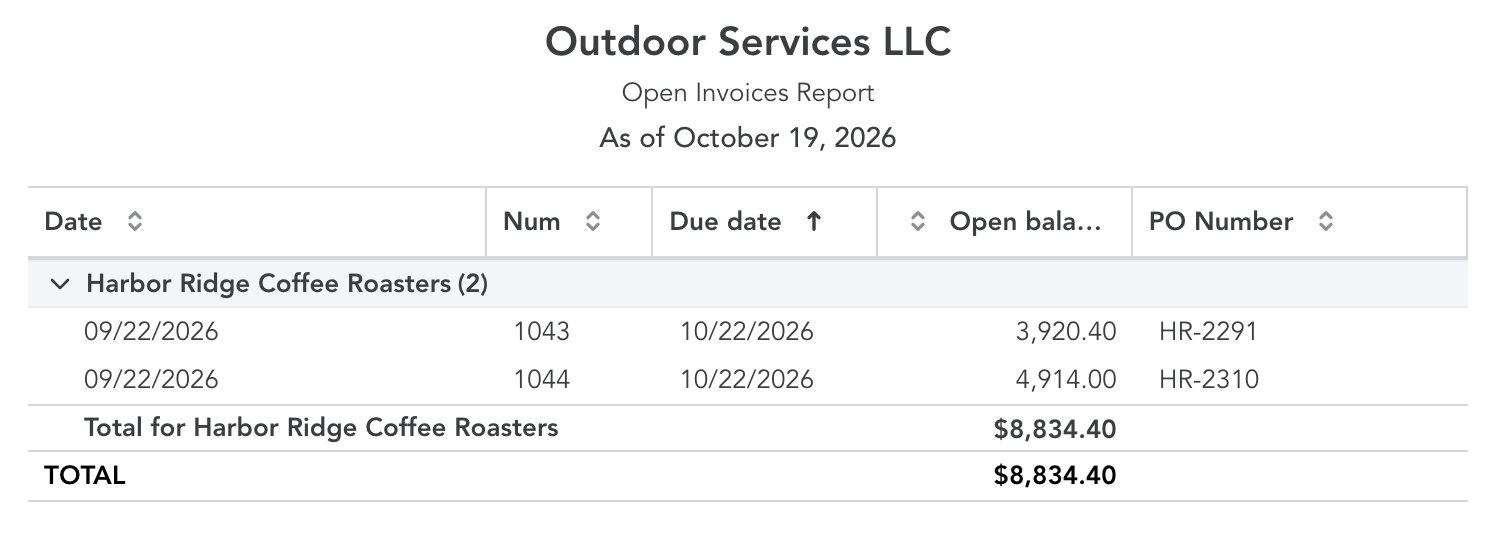
Select Save As to keep the customization for next month. On QuickBooks Online Advanced you can also sort and filter by the custom field, which helps if a customer wants everything grouped by PO.
The trade-offs:
- It's a report, not a statement. It has the QuickBooks report layout rather than your letterhead, and no remittance stub or aging summary.
- Two attachments. Your customer gets the statement for the total and the report for the PO numbers. Most AP teams cope, but it's not elegant.
- Open items only. It shows unpaid invoices, so it pairs with an Open Item statement rather than a Balance Forward one.
These steps are for QuickBooks' newer "modern view" reports. In the classic view the same options sit under Customize, then Filter and Rows/Columns.
Option 4: Fill in a statement template
For a statement that looks like your own company's, with a proper PO column, keep a statement template in Word or Google Docs and fill it in from QuickBooks:
- Run the customer's Open Invoices report (Option 3) so you have each invoice's number, date, PO and balance in one place.
- Copy the customer's name and address into the template.
- Copy each invoice into a row of the table.
- Add the total due, save as PDF, and email it.
Download our free customer statement template. It's a Word document with the customer block, a transaction table that already includes a PO column, the amount due and an aging summary. Delete the placeholder codes and type over them.
This works for a handful of customers. For month-end statements to everyone with an open balance, it's slow.
Which option should you use?
| If you want... | Use |
|---|---|
| The PO number on the QuickBooks statement itself | Option 1, the statement memo |
| A PO per line, or POs already in descriptions | Option 2, line descriptions |
| No retyping, accurate POs from the custom field | Option 3, the Open Invoices report |
| Your own layout with a real PO column | Option 4, a template |
Many businesses combine Options 1 and 3: the memo for day-to-day statements, and the report when a customer asks for a full reconciliation.
Frequently asked questions
Can I add a custom field to a QuickBooks Online statement?
No. Statements don't offer custom fields or column settings, and Custom form styles doesn't include a statement form. The closest workaround is copying the value into the invoice's Memo on statement field.
Why does my invoice memo show on the statement but not the invoice?
That's by design. The memo on an invoice, sales receipt or credit memo prints only on customer statements. Use a custom field or the message to the customer if you want something on the invoice.
Can I customize the layout of a QuickBooks Online statement?
Only a little. You can pick the statement type and dates, choose between single-line and detail-line transactions, and turn the aging table on or off. The columns, wording and layout are fixed.
Which statement type should I send to get paid?
An Open Item statement lists every unpaid invoice whatever its date, which is what most AP teams need to pay you. A Balance Forward statement shows the opening balance, the activity in a period and a running balance, which suits customers who reconcile monthly.
Will the PO number update if I change the custom field later?
Not in Options 1 or 2, because those are separate copies. Option 3 always reads the current custom field value. Statements in QuickBooks do update when the underlying invoices change, so correcting the memo on an invoice fixes the statement too.
Sending statements every month? Missing Toolkit: Templates fills your own Word statement from QuickBooks Online, with your PO custom field in its own column, no retyping. Free 30-day trial, no credit card.