
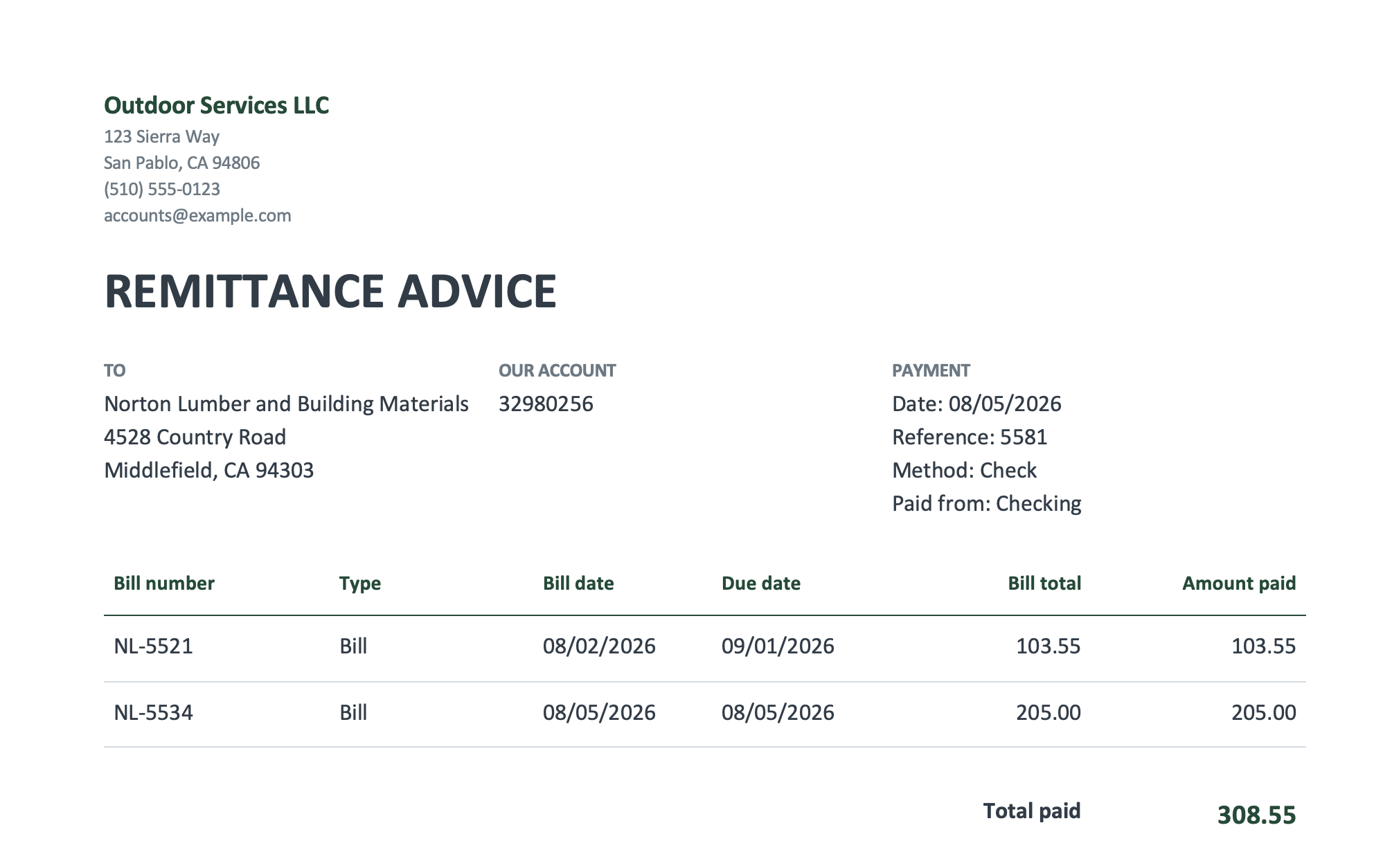
Your vendor emails to ask what an $18,400 payment was for. They can see the money arrived, but not which of their invoices it covers. A remittance advice answers that question before they have to ask.
Whether QuickBooks Online can produce one depends on where your company is. The UK, Australian and global editions have a built-in Send remittance option on bill payments. The US edition does not. US users need a workaround, and there are several that work without any extra software. This guide covers both.
What a remittance advice is
A remittance advice is a short document you send a vendor when you pay them. It says how much you paid, when and how, and which of their bills the payment settles. That last part is the point. Without it, the vendor's accounts receivable team has to guess how to apply your money, and an unapplied payment usually comes back as a phone call or a dunning letter.
A useful remittance advice includes:
- Your company name and the account number the vendor uses for you
- The payment date, amount, method and a reference (a check number or an ACH trace number)
- One line per bill paid: the vendor's invoice number, the bill date and the amount applied
- Any vendor credits used, shown as negative amounts so the column adds up to what you actually sent
Remittance advice is a courtesy, not a legal requirement. Many vendors still ask for one, and larger ones often insist on it.
Before you start: fill in the Bill no.
Every method below pulls the invoice number from the Bill no. field on each bill in QuickBooks. That field is where you type the vendor's own invoice number when you enter the bill.
QuickBooks does not fill it in for you. If it's blank, the vendor can't tell which invoices you paid. Here's QuickBooks' own remittance advice for a bill entered without a Bill no.: where the invoice number should be, it just says "Bill".
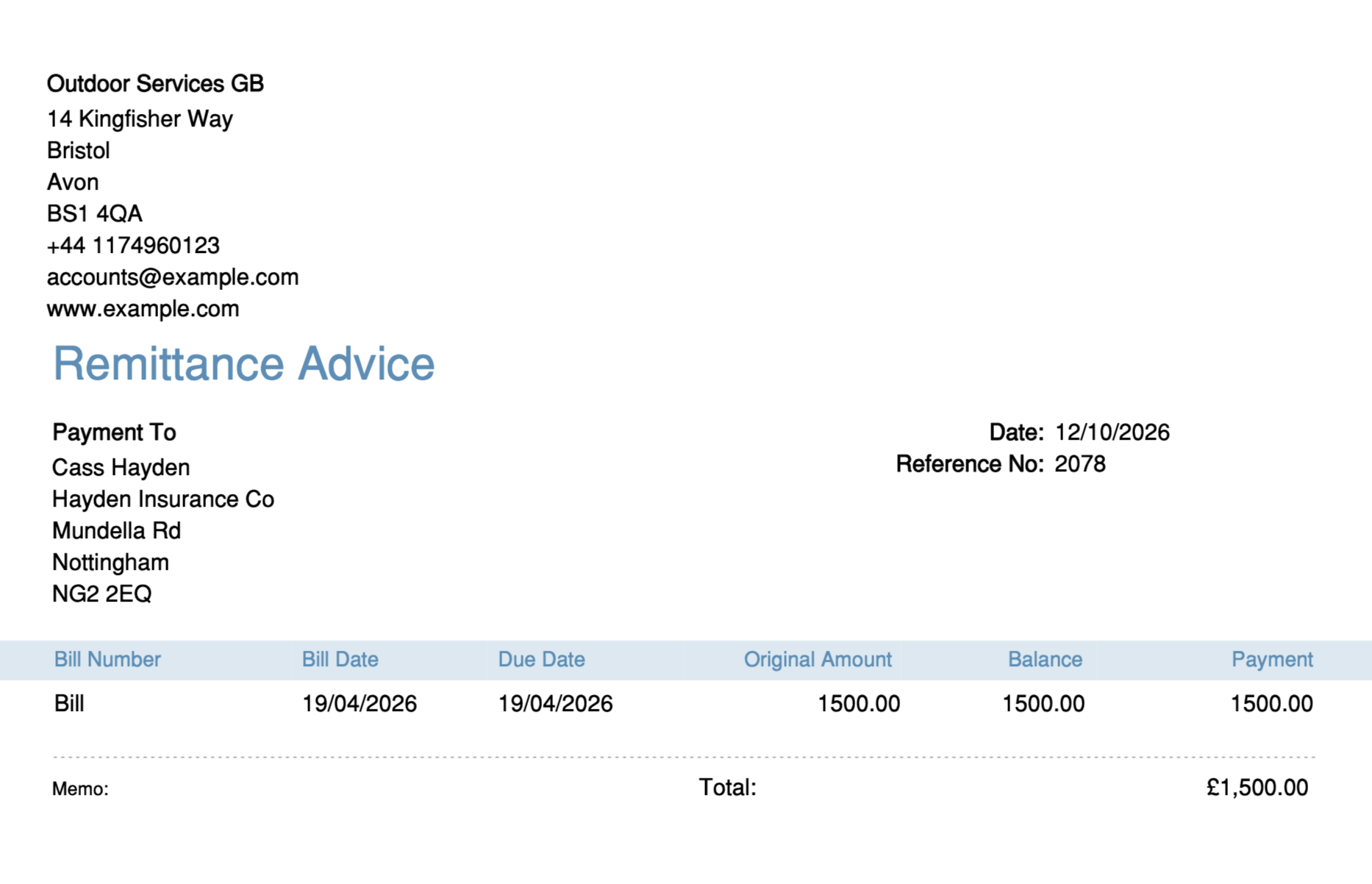
Make it a habit when entering bills, and it pays off every time you send a payment.
Two other fields are worth filling in:
- Account no. on the vendor record: the number the vendor uses to identify you. It's the first thing their clerk looks for.
- Ref no. on the bill payment: QuickBooks pre-fills a counter here, but you can replace it with something the vendor can quote back, such as an ACH trace number.
If you use QuickBooks Online outside the US
The UK, Australian and global editions can email a remittance advice for any bill payment:
- Go to Expenses & Bills, then Suppliers.
- Select the supplier you paid.
- Tick the checkbox next to the bill payment.
- Select Send remittance.
- Edit the subject and message if you like, then select Send.
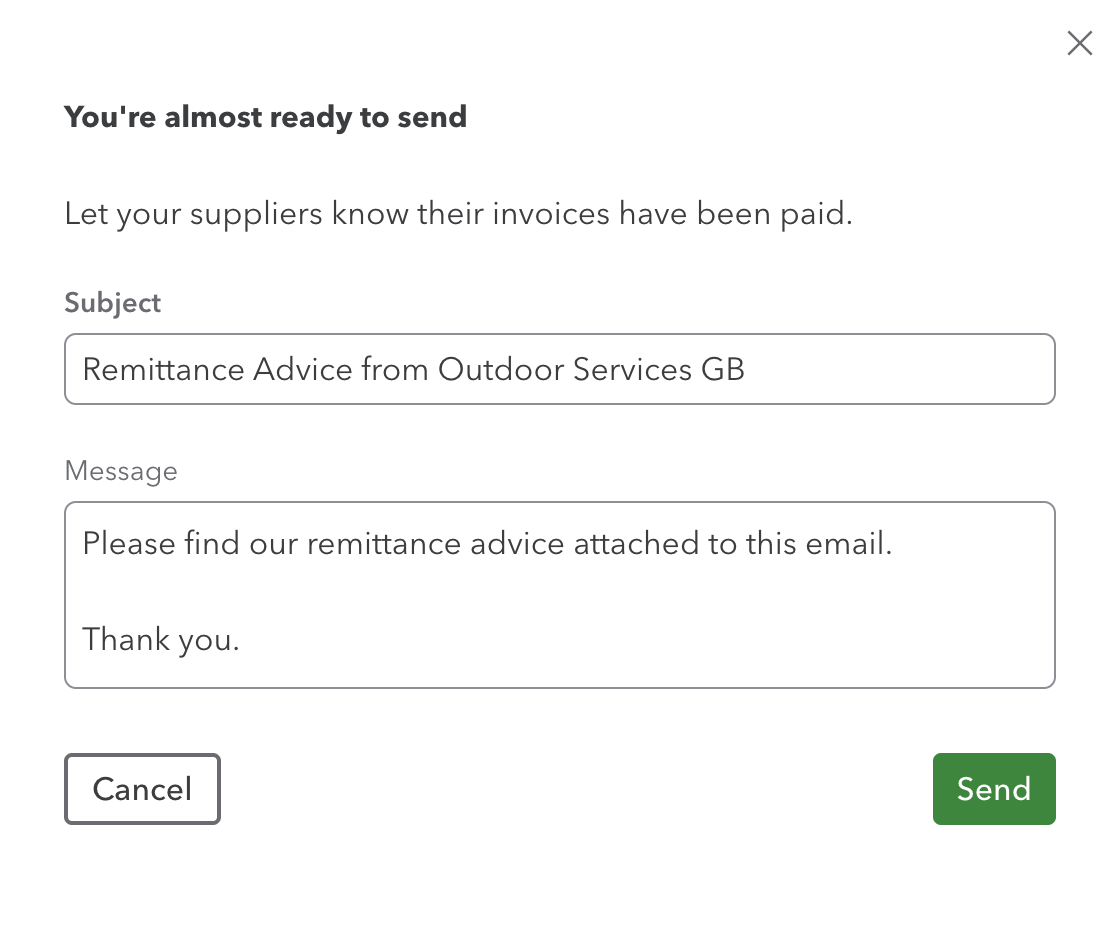
The remittance advice goes as a PDF attachment. To see it before sending, or to print it, open the bill payment and select Print.
The document has your company name and address, the supplier's name and address, the payment date and reference number, and one row per bill with these columns:
- Bill Number
- Bill Date
- Due Date
- Original Amount
- Balance
- Payment
A total, the payment's memo and a signature line follow the table. You can edit the email message, but not the document itself.
You can also send several at once from the Expenses list: filter the transactions to Bill payment, tick the payments, and use Send remittance.
A few things to know:
- It works for bill payments only. A check or expense recorded without a bill has nothing to itemize.
- It goes to the email address saved on the supplier when the payment was created. Intuit's own help says that to send it somewhere else, you have to delete and recreate the payment.
- If the supplier has no email address, QuickBooks asks for one and can save it to the supplier record.
Menu names shift as Intuit updates the interface. If yours look different, search the help panel for "send remittance".
If you use QuickBooks Online in the US
The US edition has no remittance advice. QuickBooks Team replies in Intuit's US community have confirmed this repeatedly, and the bill payment screen has no Send option. Here are the workarounds, from quickest to most complete.
Option 1: Let the check stub do it (check payments only)
If you print checks from QuickBooks on voucher-style check stock, paying several bills together through Pay bills lists the bills on the voucher stub. That stub is a remittance advice that travels with the check.
The limit is space. The stub holds roughly a dozen bills and summarizes the rest on one line, so it falls short for large payment runs. It also does nothing for ACH, wire or card payments.
Option 2: Email a customized report
This is the workaround Intuit's support team usually suggests, and it handles any payment method.
- Go to Reports and open Transaction List by Vendor.
- Select Customize.
- Set the Report period to cover the bills you paid (or All Dates).
- Under Filter, set Transaction Type to Bill and Vendor to the vendor you paid.
- In the column settings, keep Date, Num (the Bill no.), Memo and Amount, and hide the rest, such as Posting and Account full name. This report has no due date column.
- Select Run report, then narrow it to the bills this payment covered.
- Select the Email icon, or export to PDF and attach it to your own email.
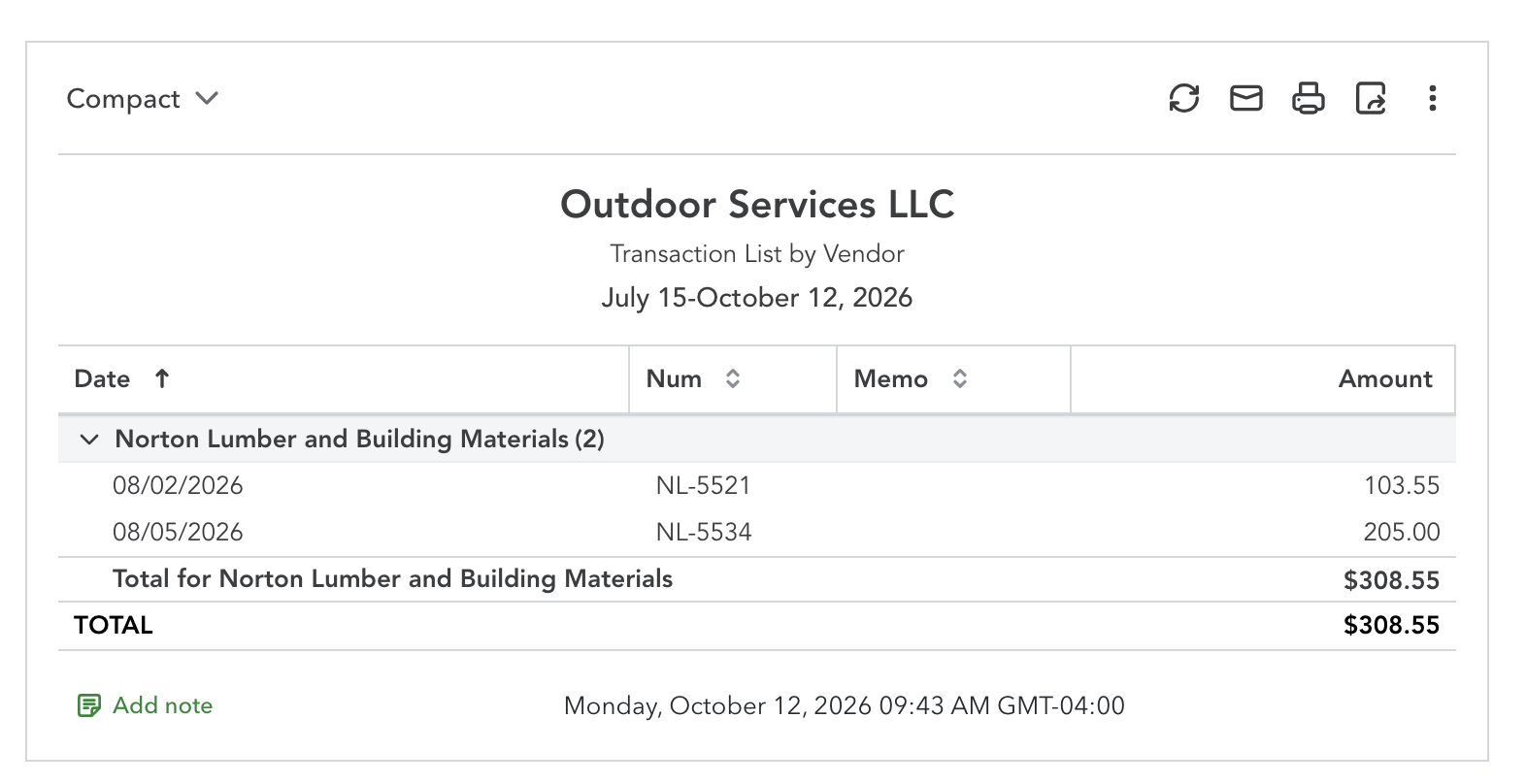
Once it looks right, select Save customization so you don't rebuild it next time. The Bill Payment List report is an alternative that groups bills under each payment.
The trade-off: it's a report, not a letter. It carries the QuickBooks report layout rather than your letterhead, and you'll usually have to trim rows by hand so the vendor only sees bills from this payment.
Option 3: Fill in a remittance advice template
For a document that looks like it came from your company, keep a remittance advice template in Word or Google Docs and fill it in from the bill payment:
- Open the bill payment in QuickBooks. It lists every bill it paid with the amount applied.
- Copy the payment date, amount and reference into the template.
- Copy each bill's number, date and amount paid into the table.
- Save as PDF and email it to the vendor.
Download our free remittance advice template. It's a Word document with the payment block, bill table and total already laid out. Delete the placeholder codes and type over them.
This takes a few minutes per payment, which is fine for a handful of vendors and painful for a weekly payment run.
What about QuickBooks Bill Pay?
If you pay through QuickBooks Bill Pay, the vendor gets an automatic payment notification. It confirms that money is on the way, but it doesn't itemize the bills the payment covers, so it doesn't replace a remittance advice for vendors who need to match your payment to their invoices.
Frequently asked questions
Does QuickBooks Online have remittance advice?
Yes outside the US: the UK, Australian and global editions have a Send remittance option on bill payments. The US edition does not, so US users rely on check stubs, reports or a template.
Can I send a remittance advice for an ACH or wire payment?
Yes, as long as you record the payment in QuickBooks as a bill payment against the bills it covers. Put the bank's trace or confirmation number in the payment's Ref no. field so the vendor can match it.
Why does my remittance advice not show the vendor's invoice numbers?
The Bill no. field on those bills is empty. QuickBooks doesn't number bills automatically, so the number has to be typed in when the bill is entered.
Should vendor credits appear on a remittance advice?
Yes. If a credit reduced the payment, list it as a negative line. Otherwise the vendor sees bills totaling more than you sent and assumes a short payment.
Do I have to send a remittance advice?
No law requires one, but vendors use them to apply payments correctly. Sending one prevents most "what was this payment for?" calls.
Need this every payment run? Missing Toolkit: Templates fills your own Word remittance advice from any QuickBooks Online bill payment, with every bill itemized and vendor credits included, on your letterhead. Free 30-day trial, no credit card.