
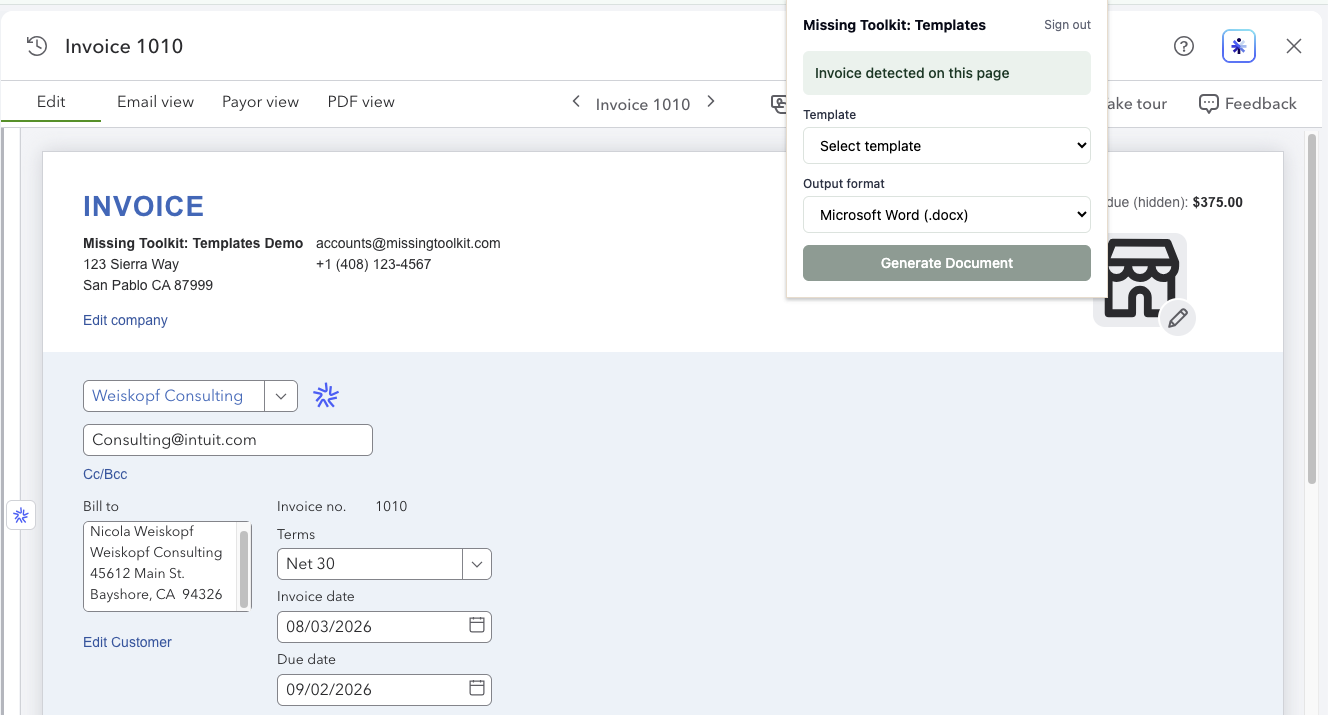
If you have installed the Missing Toolkit: Templates Chrome extension and pinned it to your toolbar, you can now generate documents without leaving QuickBooks Online. Open an invoice, click the extension icon, choose a template, and a finished Word document or PDF lands in your Downloads folder.
This guide walks through that process from first sign-in to finished document. It also covers what the icon's badge means, which records the extension works on, how to sign out, and what to do when something doesn't work as expected.
If you haven't installed the extension yet, start with How to Add a Chrome Extension and Pin It to Your Toolbar, then come back here.
What you need before you start
- A Missing Toolkit: Templates account with an active subscription. The 30-day free trial counts, so you can try the extension before you subscribe.
- At least one QuickBooks Online company connected to your Missing Toolkit account.
- At least one template. If you haven't made one yet, add a ready-made starter template from the Templates page in the web app. Every template on your team appears in the extension.
- Google Chrome on a computer, with the extension installed and pinned.
Step 1: Sign in to the extension
Click the Missing Toolkit icon on your toolbar. The first time you open it, you'll see a sign-in form.
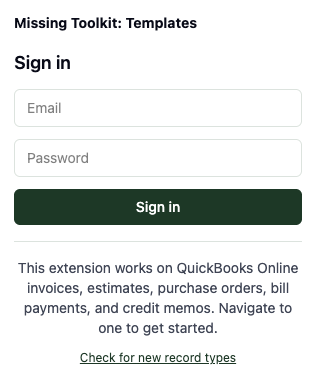
Enter the email address and password you use for the Missing Toolkit: Templates web app, then click Sign in. There is no separate account for the extension.
You only sign in once per browser. The extension keeps you signed in while you use it. After 30 days without using it, or 90 days after you signed in, it asks you to sign in again. That's deliberate: a browser you've stopped using doesn't stay connected to your account indefinitely.
The form also lists the kinds of QuickBooks Online records the extension works on. More on that in the next step.
Step 2: Open a record in QuickBooks Online
In QuickBooks Online, open the record you want a document for, for example an invoice. The extension recognises the page on its own, so there is nothing to click yet.
Look at the extension icon. On most QuickBooks Online pages it looks like this:

When you open a record the extension can work with, a badge appears on the icon:

The badge is your signal that the extension is ready. If you click the icon while no badge is showing, the extension tells you which records it supports:
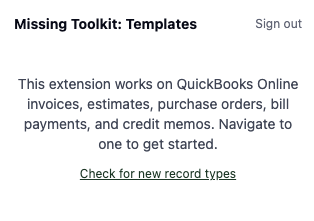
At the time of writing, that's invoices, estimates, purchase orders, bill payments and credit memos. The list grows as we add record types, and the extension picks up additions automatically without an update. The popup always shows the current list, and you can see what each record type can produce on our QuickBooks Online page. If a new record type has just been announced and your extension doesn't recognise it yet, click Check for new record types in the popup.
The record needs to be saved. A brand-new invoice you haven't saved yet doesn't exist in QuickBooks Online, so there is nothing to generate a document from. Save it first and the badge appears.
Step 3: Click the extension icon
With the badge showing, click the icon. The popup confirms what it found, for example Invoice detected on this page, and shows the options for your document.
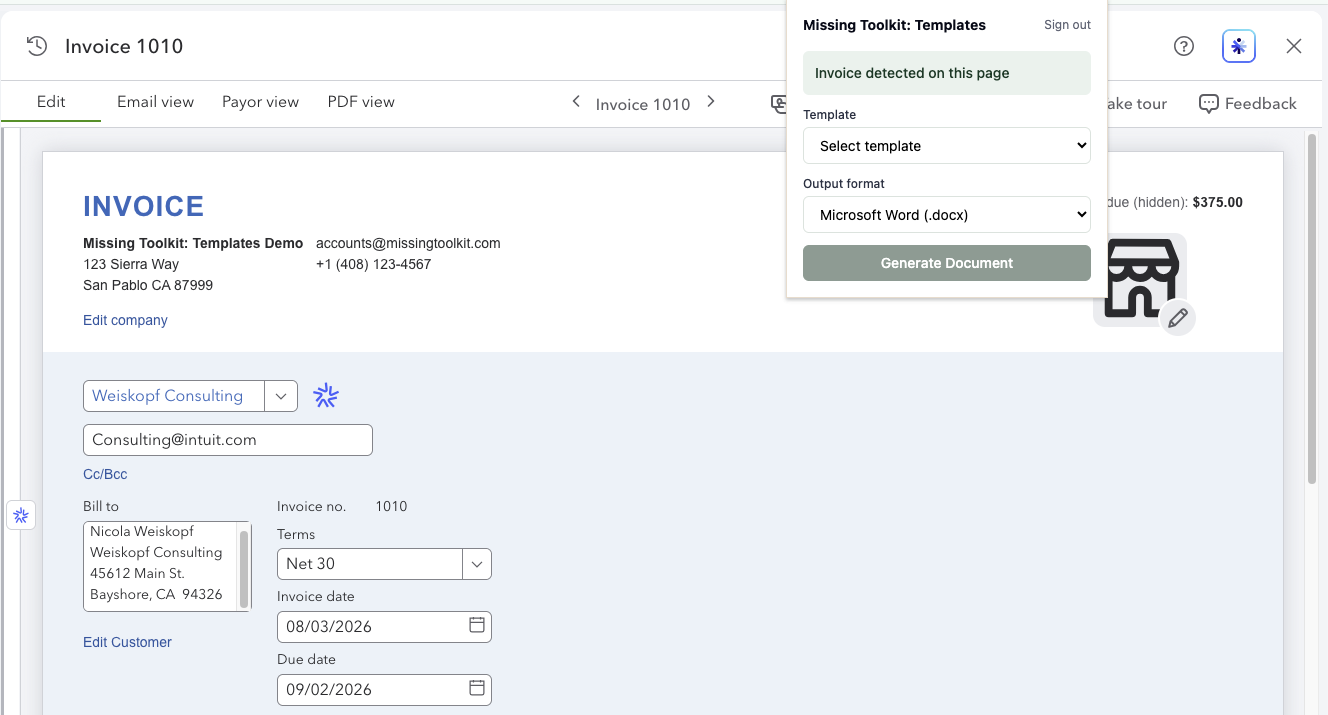
If you have more than one QuickBooks Online company connected to your account, you'll also see a Connection field. The extension works out which company you're currently working in and selects the matching connection for you, so a document is never generated from the wrong company's data. If you only have one company connected, the field doesn't appear.
Step 4: Choose a template
Click the Template dropdown and choose the template you want.
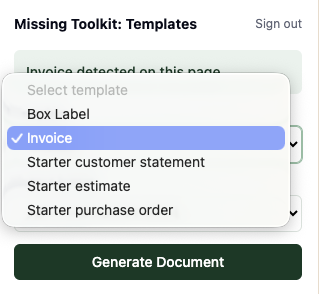
The list shows every template your team has, in alphabetical order, including templates built for other kinds of records. Choose one designed for the record you're on: an invoice template for an invoice, an estimate template for an estimate, and so on.
You add and edit templates in the Missing Toolkit: Templates web app, not in the extension. Anything you change there shows up in the extension the next time you open the popup.
Step 5: Choose Word or PDF
Click the Output format dropdown and choose Microsoft Word (.docx) or PDF (.pdf).
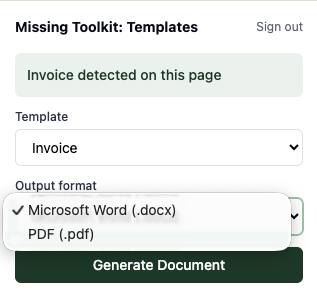
Choose Word if you want to review or edit the document before it goes out. Choose PDF if you're ready to send it as it is.
Step 6: Click Generate Document
Click Generate Document. After a moment the popup shows Document downloaded! and Chrome's download indicator shows the new file.
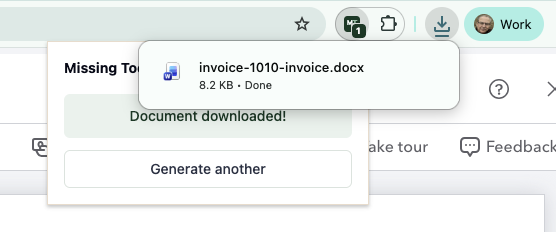
The file goes wherever Chrome saves your downloads, usually your Downloads folder. Its name includes the record type, the record number and the template, for example invoice-1010-invoice.docx, so you can tell your documents apart.
To create another document from the same record, for example a PDF as well as a Word file, or a different template, click Generate another.
The finished document
Open the file and you'll see your template filled in with the details from QuickBooks Online: your company details, the customer, the dates and terms, the line items and the totals.
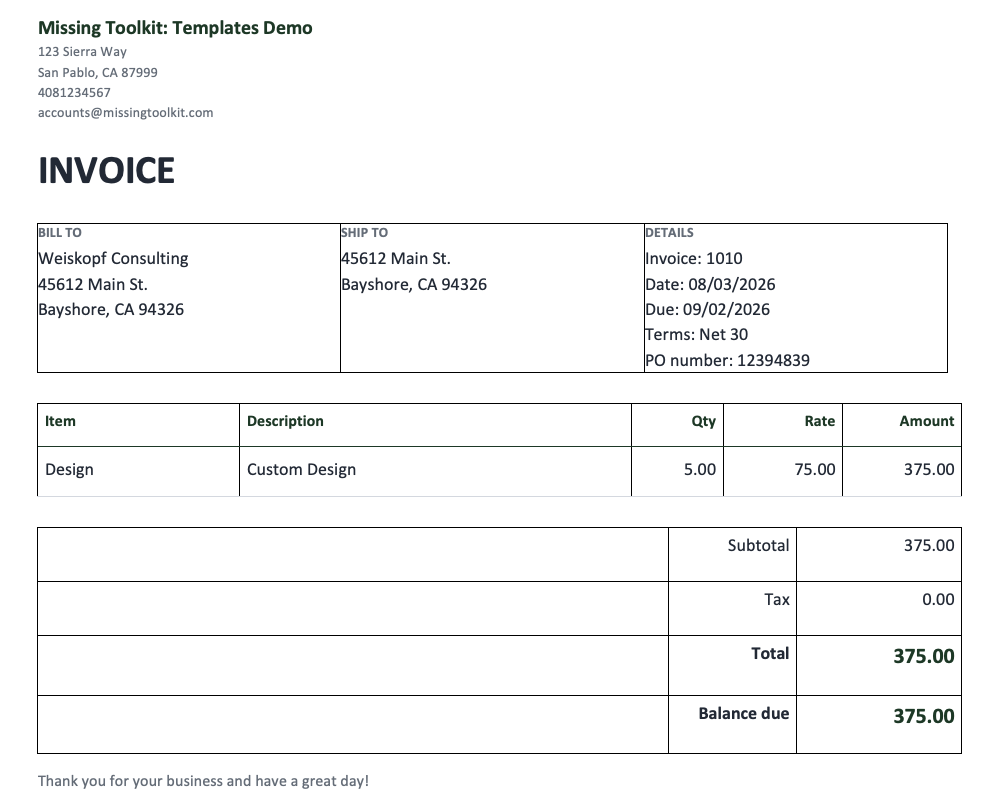
This example uses the starter invoice template. Your own templates can use your letterhead, your layout, and the fields QuickBooks Online doesn't put on its own forms, including your custom fields.
What the extension doesn't do
The extension creates one document from the one record you're looking at. A few things happen in the web app instead:
- Customer statements. A statement isn't a single QuickBooks Online record. It's built from a customer's transactions over a period, so there's no page for the extension to detect. Create statements from the customer list in the web app.
- Many documents at once. To generate documents for a batch of records, or to schedule a run for month-end, use the web app.
- Managing templates and connections. Upload templates and connect QuickBooks Online companies in the web app.
Troubleshooting
There's no badge on the icon
Check these in order:
- Is this a supported record type? Click the icon to see the current list.
- Is the record saved? Unsaved records can't be detected.
- Have you just added a record type? Click Check for new record types in the popup.
- Reload the page. If you opened QuickBooks Online before installing the extension, reload the tab once so the extension can see it.
"No matching connection"
The QuickBooks Online company you're working in isn't connected to your Missing Toolkit account. Sign in to the web app, connect that company, then open the popup again.
This also happens if you work in several QuickBooks Online companies and only some of them are connected. The extension won't generate a document against a different company, which is the point.
"The provided credentials are incorrect."
Check that you're using the email address and password for Missing Toolkit: Templates, not your Intuit or QuickBooks Online sign-in. If you've forgotten your password, reset it from the sign-in page at templates.missingtoolkit.com, then sign in to the extension with the new one.
"Session expired. Please log in again."
Your sign-in has run out, or it was ended from your account settings (see the next section). Sign in again.
"Active subscription required."
Your team's subscription or free trial has ended. The account owner can renew it from the Billing page in the web app. If you're a team member rather than the owner, ask the owner.
"Your QuickBooks connection has expired. Please reconnect to continue."
Intuit ends a connection if it hasn't been used for a long time, or if someone disconnects the app from inside QuickBooks Online. Reconnect the company from the web app and try again.
The document didn't download
Open Chrome's downloads list (the download icon on the toolbar, or Cmd+Shift+J on a Mac, Ctrl+J on Windows). If Chrome is set to ask where to save each file, a save dialog may be waiting behind another window.
Signing out, and seeing where you're signed in
To sign out on this computer, click Sign out at the top right of the popup.
To see every browser where you're signed in to the extension, sign in to the web app and go to Settings → Security. The browser extension sessions list shows when each one was last used. You can sign out of one browser or all of them from there, which is useful if you've stopped using a computer or can't remember where you signed in.
Changing your password also signs the extension out everywhere, so you'll need to sign in again with the new password.
Frequently asked questions
Does the extension read my QuickBooks Online data?
The extension reads only two things from the page: the record type and number from the page address, and which QuickBooks Online company you're in, so it can pick the right connection. The data that goes into your document is fetched by Missing Toolkit through Intuit's official QuickBooks Online API, the same way the web app does it. Full details are in our privacy policy.
Can everyone on my team use it?
Yes. Each person signs in with their own Missing Toolkit account and sees the team's shared templates and connections.
Do I need to update the extension when you add new record types?
No. The extension checks with Missing Toolkit for the list of supported records, so new record types start working without an update.
Does it work in Microsoft Edge or other browsers?
The extension is built and tested for Google Chrome. See the previous guide for how other Chromium-based browsers handle Chrome extensions.
Is the document saved anywhere else?
The file downloads to your computer. For how long Missing Toolkit keeps a generated document on its side, see our privacy policy.
Not using Missing Toolkit: Templates yet? Start a 30-day free trial, with no credit card required, and get the Chrome extension.
Intuit and QuickBooks are registered trademarks of Intuit Inc. Used with permission. Chrome is a trademark of Google LLC.