
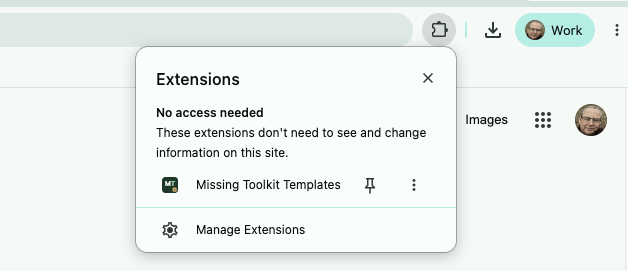
Most Chrome extensions take about thirty seconds to install. What trips people up comes afterwards: the extension installs, and then its icon is nowhere to be seen. Chrome tucks new extensions behind a small puzzle-piece icon unless you pin them to the toolbar.
This guide covers both parts, installing an extension from the Chrome Web Store and pinning it so it stays in view. It also covers how to unpin or remove one, what to do when installation fails, and whether other browsers can use Chrome extensions.
The screenshots use Missing Toolkit: Templates as the example. The steps are the same for any extension.
What you need before you start
- Google Chrome on a computer. Extensions run on Windows, Mac, Linux and ChromeOS. Chrome on phones and tablets does not support them.
- A normal browser window. Chrome does not let you add extensions in an Incognito window or while browsing as a guest.
- Permission to install, if the computer belongs to your work or school. Organizations can block some or all extensions (more on that in the troubleshooting section).
How to add an extension to Chrome
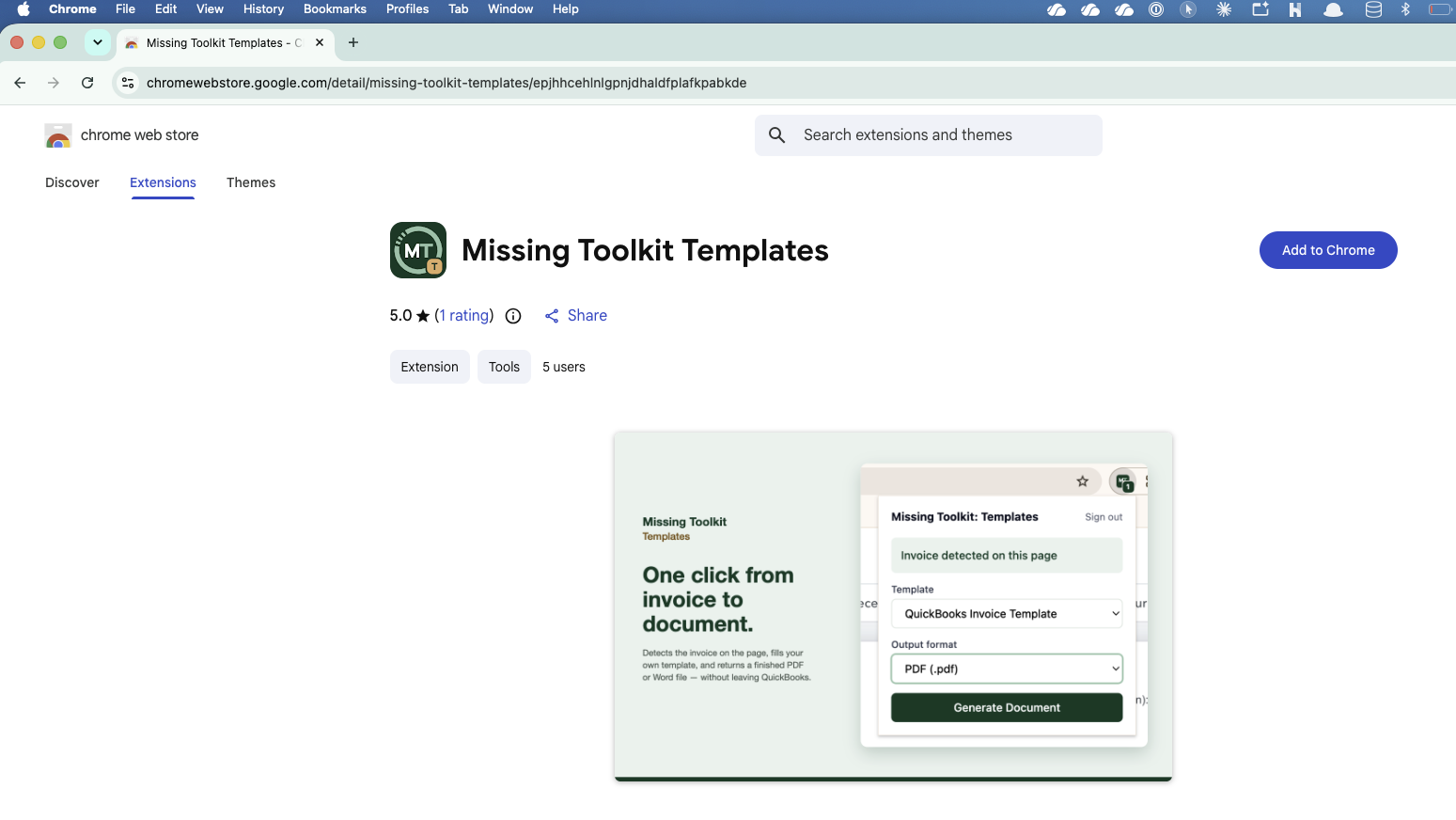
1. Open the extension's page in the Chrome Web Store
If you have a direct link, as you do from most product websites, click it. Otherwise, go to the Chrome Web Store, type the extension's name in Search extensions and themes, and choose it from the results.
Before you install, check a few things on the listing: the developer name, the rating and number of users, and the Privacy practices section further down the page. Every extension in the store has to declare what data it collects, and this section shows you those declarations.
2. Click Add to Chrome
The blue Add to Chrome button sits at the top right of the listing.
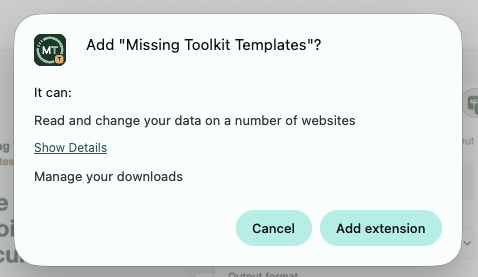
3. Review the permissions and click Add extension
Chrome opens a dialog that asks you to confirm and lists what the extension will be able to do, for example "Read and change your data on" a particular set of websites. Read this list. An extension that works on one website should not usually be asking for access to every website you visit.
If the permissions look right, click Add extension.
If you have Chrome's Enhanced protection turned on, you might also see the message "This extension is not trusted by Enhanced Safe Browsing." That does not mean the extension is harmful. It means the developer has not yet built up the track record Google uses for its trusted list, which is common for newer and specialised extensions. You can choose Continue to install if you trust the developer, or Close to stop.
4. Confirm it installed
Chrome shows a short confirmation that the extension has been added. That is all there is to installing. The extension is now active, but its icon is probably not on your toolbar yet, which is the next step.
How to pin an extension to the Chrome toolbar
Pinning puts the extension's icon permanently to the right of the address bar, so you can click it in one step. It also lets you see the extension's badge or status at a glance, which many extensions use to tell you they are active on the current page.
1. Click the Extensions icon
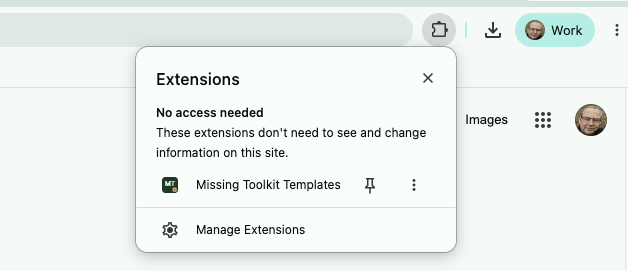
Look to the right of the address bar for the puzzle-piece icon. This is the Extensions menu, and it lists every extension you have installed.

2. Click the pin next to the extension
Find the extension in the list and click the pin icon beside its name. The pin turns blue to show it is pinned.
3. Find the icon on your toolbar
The extension's icon now appears next to the puzzle piece and stays there across every tab and window. To change the order of your pinned extensions, drag the icons left or right.

How to unpin or remove an extension
To unpin, open the Extensions menu and click the blue pin again, or right-click the extension's icon on the toolbar and choose Unpin. The extension keeps working; only the icon moves back into the menu.
To remove an extension completely, you have three options:
- Right-click its icon on the toolbar and choose Remove from Chrome.
- Open the Extensions menu, click the three dots next to the extension, and choose Remove from Chrome.
- Go to the three-dot menu at the top right of Chrome, then Extensions → Manage Extensions, and click Remove on the extension's card.
Chrome asks you to confirm each time. If you only want to switch an extension off for a while, use the toggle on its card in Manage Extensions instead. That keeps its settings, so you do not have to set it up again later.
Troubleshooting
The Add to Chrome button is missing or greyed out
Check these in order:
- You are in Incognito or Guest mode. Open a normal window and try again.
- You are on a phone or tablet. Switch to a computer.
- Your browser is managed by your organization. If Chrome's three-dot menu shows Managed by your organization, your IT team controls which extensions can be installed. Ask them to allow the extension. Send them the Chrome Web Store link so they know exactly which one you mean.
- You are not using Chrome. Some other browsers show the button but need a setting changed first. See the next section.
I installed the extension but can't find it
It is installed, just not pinned. Open the Extensions menu (the puzzle piece) and pin it, as described above. If it does not appear in that menu either, go to Manage Extensions and check that its toggle is switched on.
The extension icon is greyed out
Many extensions are built for particular websites and only become active there. A greyed-out or badge-less icon on an unrelated page is usually normal. Open a page the extension is designed for and check again.
The extension stopped working after an update
Chrome updates extensions automatically. If one misbehaves afterwards, go to Manage Extensions, switch it off and on again, and reload the page you are working on. If Chrome shows a Repair button on the extension's card, click it.
Can I use Chrome extensions in other browsers?
Several browsers are built on the same engine as Chrome and can install extensions from the Chrome Web Store:
- Microsoft Edge. When you visit the Chrome Web Store, Edge shows a banner asking you to allow extensions from other stores. Allow it, then install as normal. Edge's version of the puzzle-piece menu lets you show an extension on the toolbar in the same way.
- Brave, Vivaldi and Opera can also install Chrome Web Store extensions, though Opera needs its own add-on first.
Firefox and Safari use different extension systems and cannot install Chrome extensions.
Keep in mind that an extension can install in these browsers without its developer supporting them. If something doesn't work, check the extension's listing to see which browsers it supports before you report a problem.
Frequently asked questions
Do Chrome extensions work on Android, iPhone or iPad?
No. Chrome on phones and tablets does not support extensions. You need Chrome on a Windows, Mac, Linux or ChromeOS computer.
Will my extensions appear on my other computers?
If you are signed in to Chrome with sync turned on, your extensions install on your other computers automatically. You may need to pin them again on each computer.
Do I need to update extensions myself?
No. Chrome checks for updates and installs them automatically in the background.
How do I know if an extension is safe?
Check who publishes it, how many people use it, its reviews, and the Privacy practices section of its listing. Compare the permissions it asks for with what it claims to do. A developer with a website, a privacy policy and a support contact is a good sign.
Why doesn't the pin icon appear next to an extension?
Some extensions are installed by your organization and pinned for you. In that case you can't unpin them. Otherwise, make sure you are clicking the puzzle-piece icon and not the extension's own icon.
Putting it to work: Missing Toolkit: Templates
If you followed along with the screenshots, you have just installed Missing Toolkit: Templates. It generates Word documents and PDFs from your own templates, straight from the QuickBooks Online record you are viewing.
Pinning it is worth the extra step. The extension icon shows a badge when you open a supported QuickBooks Online record, so you can see that it is ready before you click.
The extension works with your existing Missing Toolkit: Templates account. For the next steps, including signing in, choosing a template and generating your first document, see How to generate documents from QuickBooks Online with the Missing Toolkit: Templates Chrome extension.
Get Missing Toolkit: Templates from the Chrome Web Store →
Intuit and QuickBooks are registered trademarks of Intuit Inc. Used with permission. Chrome is a trademark of Google LLC.