
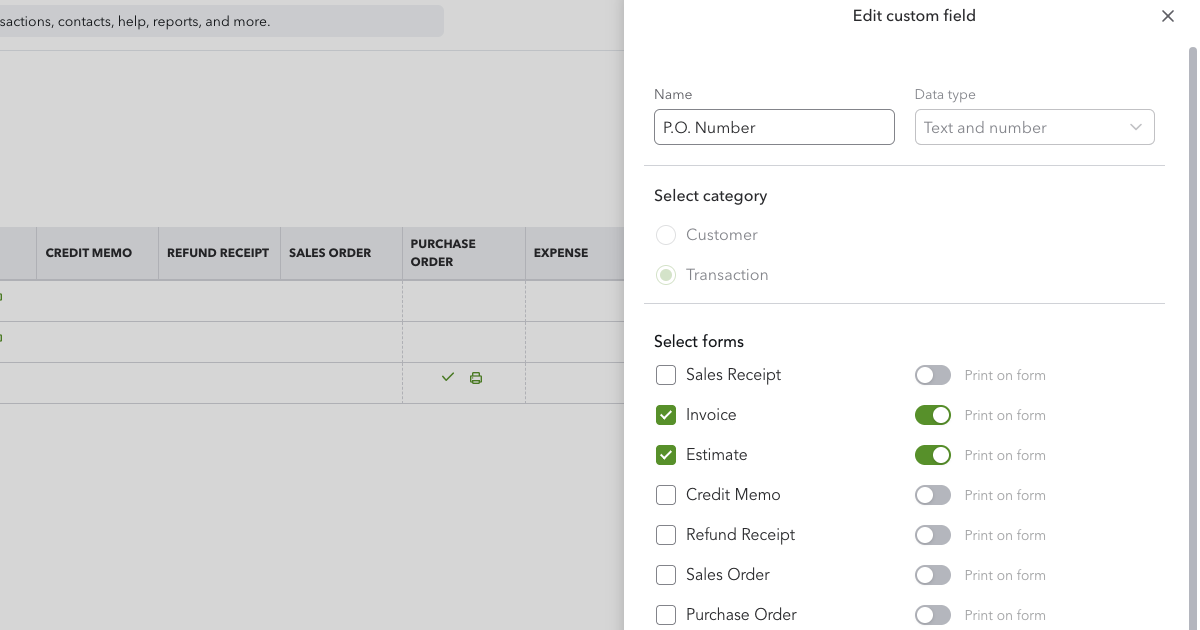
Custom fields are how you get information into QuickBooks Online that Intuit never built a box for: a customer's purchase order number, the job or site an invoice belongs to, the sales rep who closed it, the delivery method, a tax registration number. You create the field once in settings, and from then on it appears on the forms you chose.
Adding one takes about a minute. Knowing which field to add, on which plan, with which data type, and where the value will actually show up afterwards takes longer — and that second part is where most people get caught out. This guide covers both.
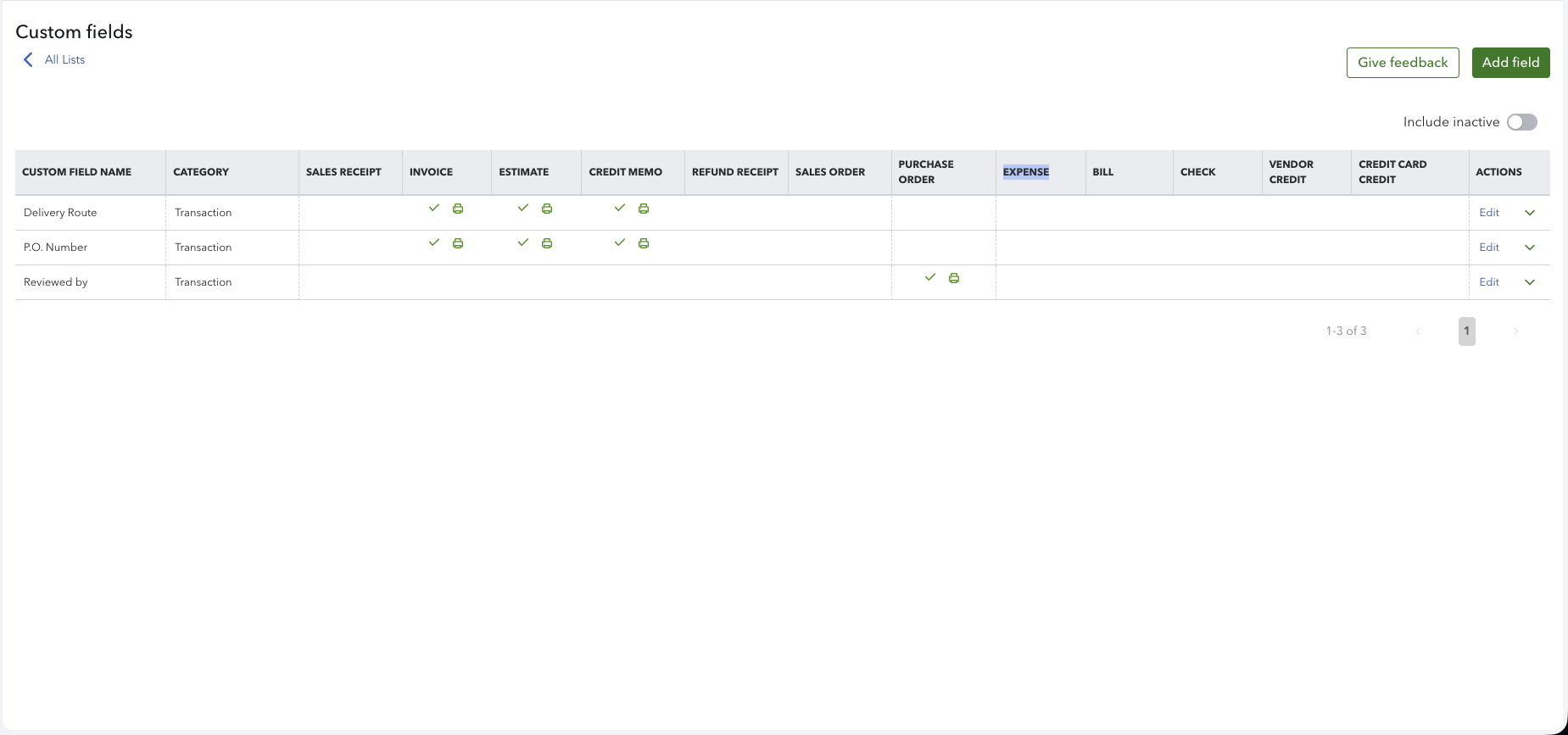
What a custom field is in QuickBooks Online
A custom field is an extra box you define yourself. It has a name, a data type, and a list of the forms or records it attaches to. Once created, it behaves like any other QuickBooks field: you fill it in when you write the transaction, it saves with the record, and — if you told it to — it prints on the document your customer receives.
Two things it is not:
It is not a line-item field. Custom fields attach to the transaction as a whole, in the form header. Asked directly whether products can carry custom fields, Intuit's support team's answer is that there are no custom fields for products in QuickBooks Online. If you need information that changes line by line, the description column is what you have. (QuickBooks Online Advanced's reporting documentation does mention custom fields showing detail about a "line item" — that refers to rows in a report, not to a column you can add to the form.)
It is not a tag. Tags were a separate, free-form labelling system, but Intuit is retiring them: companies that never used tags lost the option to create them in May 2025, and reporting on existing tags ends in May 2028. Custom fields are the structured, print-capable option, and the one with a future.
How many custom fields your plan gives you
This is the first thing to check, because it decides everything after it.
| Plan | Custom fields per transaction | Data types available | Fields on customer, vendor and project records | Purchase orders |
|---|---|---|---|---|
| Simple Start | 1 | Dropdown list | No | No |
| Essentials | 4 | Dropdown or text | No | No |
| Plus | 4 | Dropdown or text | No | Yes |
| Advanced | 12 per form type | Dropdown, text, number, date | Yes — 12 per profile type | Yes |
| Ledger | Not available | — | — | — |
Two rows of that table are worth reading twice.
Profile fields are an Advanced feature. On Advanced, customer, vendor and project fields sit in their own bucket — twelve per form type and twelve per profile type, counted separately. On Essentials and Plus there are no profile fields at all: every custom field you create comes out of the four you get on the transaction.
The dropdown is not the premium option. Dropdown lists are available on every plan, Simple Start included. What Advanced adds is number and date fields.
There is one more limit that does not appear in any plan comparison. In the prerequisites for enhanced custom fields on Advanced, Intuit states that a maximum of three custom fields per form type can have "Print on form" turned on. So on Advanced you can define twelve fields on an invoice and show three of them to the customer; the other nine are internal. Intuit does not publish an equivalent cap for the lower plans, so if you are on Essentials or Plus and planning to print all four, confirm it in your own account first.
How to add a custom field to a sales form or purchase order
- Select Settings ⚙, then Custom fields.
- Select Add field. (If this is the first custom field in the company, the button reads Add custom field.)
- Enter the field's Name. This is the label your team and your customers will see, so write it the way it should appear on the document —
P.O. Number, notpo num. - Choose a Data type, from whatever your plan offers.
- Under Category, choose Transaction.
- Under Select forms, tick every form the field belongs on — invoice, estimate, sales receipt, credit memo, refund receipt on the sales side; expense, check, bill, vendor credit, credit card credit on the purchase side.
- Turn on Print on form if the value should appear on the PDF and the emailed copy. Leave it off for anything internal.
- Select Save.
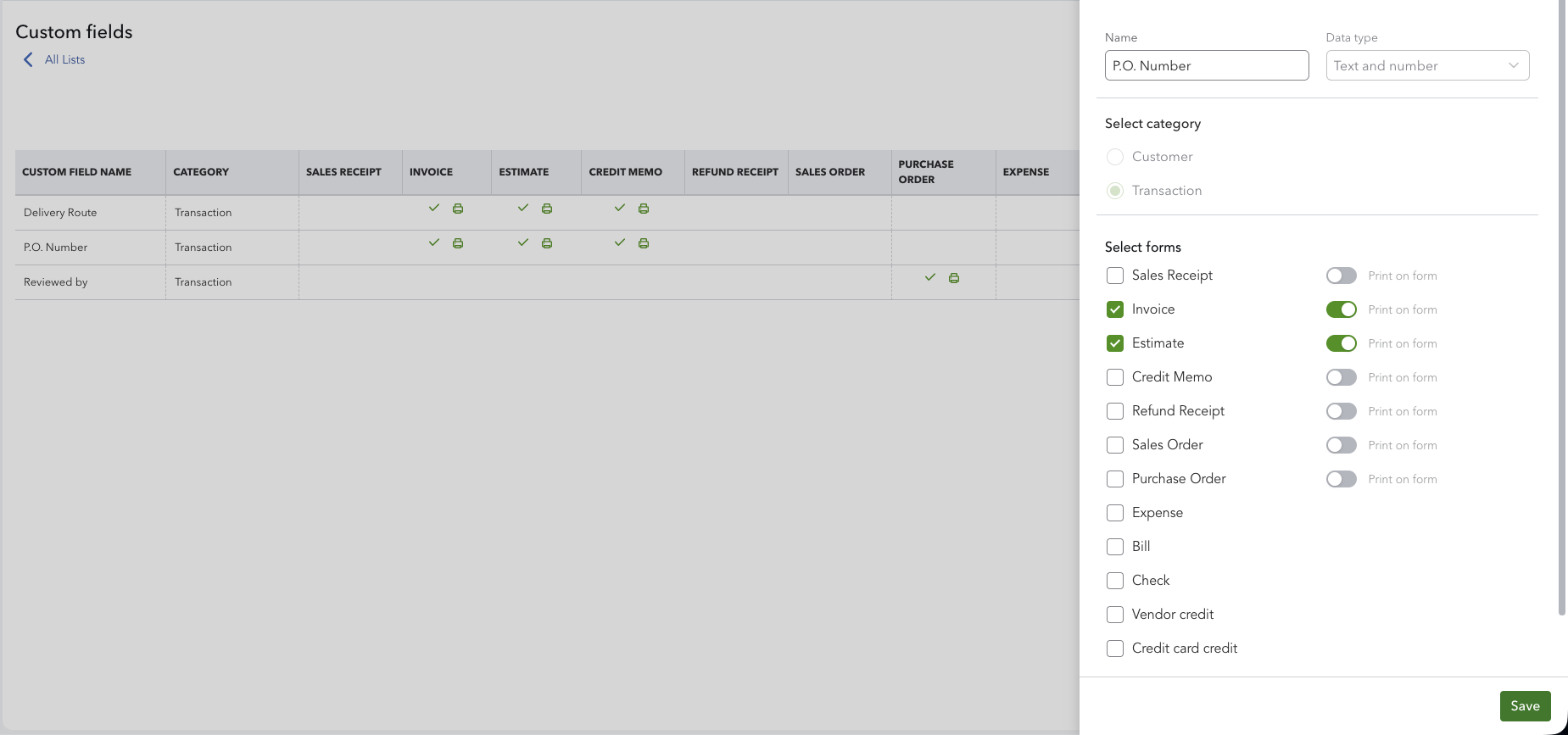
A note on step 6. Purchase orders exist only on Plus and Advanced, and even there they have to be switched on before they appear in the list: Settings ⚙ → Account and settings → Expenses → Purchase orders → Edit → Use purchase orders. The rest of the expense-side forms are available on the lower plans too — this is not the Advanced-only part of custom fields that it is often described as.
How to add a custom field to a customer or vendor profile
Profile fields are for information that should follow a contact around rather than be retyped on every transaction — an account number, a tax registration number, a territory, a purchasing agent's name. They require QuickBooks Online Advanced.
- Select Settings ⚙, then Custom fields.
- Select Add field.
- Name the field and choose a data type.
- Under Category, choose Customer, Vendor or Project.
- Select Save.
The field then appears on every record of that type. Intuit's documentation for vendor and expense custom fields describes the value filling itself in from the vendor when you select one — a vendor ID field populating on the expense form, for instance — which is the argument for holding stable information on the profile rather than repeating it on each transaction.
Choosing a data type
| Data type | Plans | Use it for | Watch out for |
|---|---|---|---|
| Dropdown list | All | Delivery method, region, status, rep | The option list is fixed; adding an option later is a settings change, not a typing change |
| Text | Essentials and above | P.O. numbers, job names, reference codes | Accepts anything, including typos — no validation |
| Number | Advanced | Quantities, weights, counts | Will not accept a P.O. number with a slash or a dash in it |
| Date | Advanced | Delivery dates, site visits, contract start | Formats to the company's date setting |
Prefer a dropdown for anything you will later want to report on. Free text spreads — Net 30, net 30, Net30 and 30 days become four values in a report that should have been one. A dropdown makes that impossible, and it is available to you whatever you pay.
Where custom field values actually appear
This is the part the help pages leave you to discover on your own.
| Where | Does the custom field value appear? |
|---|---|
| The invoice, estimate or purchase order on screen | Yes |
| The PDF and emailed copy | Only with Print on form on — and on Advanced, only three fields per form type |
| A defined list of standard reports | Yes, on every plan — see below |
| As a report column, grouping, filter or sort key | Advanced only |
| Customer statements | No |
| Packing slips | No |
| The line-item table on any form | No — header only |
The statement row is the one that costs people real time. You can add a P.O. Number field to your invoices, fill it in on every one, print it on the invoice — and then produce a statement, which is the document your customer's accounts payable team actually reconciles against, and the number is not there. Asked about exactly this, Intuit's support team confirms that adding a P.O. number to a customer statement is not available in QuickBooks Online.
Their workaround is to also type the P.O. number into the invoice's Memo field, because an invoice memo prints on the statement beside the invoice number. It works. It also means recording the same number twice, in two places, on every invoice you write.
Packing slips are in the same position: Intuit's support team's answer is that the packing slip cannot be customised, and that invoices, estimates and sales receipts are the only forms that can be. Worth knowing that users report custom fields having printed on packing slips in the past, so this reads more like a regression than a decision.
Reporting on custom fields
Custom fields do show up in standard reports on every plan — Intuit publishes the list, organised by the minimum plan each report needs, and the "available in all plans" group includes the ones most people want: Open Invoices, Invoice List, Customer Balance Detail, Collections Report, Sales by Customer Summary and Detail, Estimates by Customer, Unpaid Bills, Transaction List by Date.
What QuickBooks Online Advanced adds is the ability to work with them:
- Add a custom field as a column on a report
- Group or filter a report by one
- Sort a list, such as the invoice list, by a custom field column
- Search transactions for a specific custom field value
Intuit's own caveat is worth carrying over: not every report supports custom fields, or every custom field feature. Check the report you actually run before you design a process around it.
Five setups that earn their slot
With four fields on Plus and only three printable on Advanced, each one has to justify itself. These are the ones that consistently do:
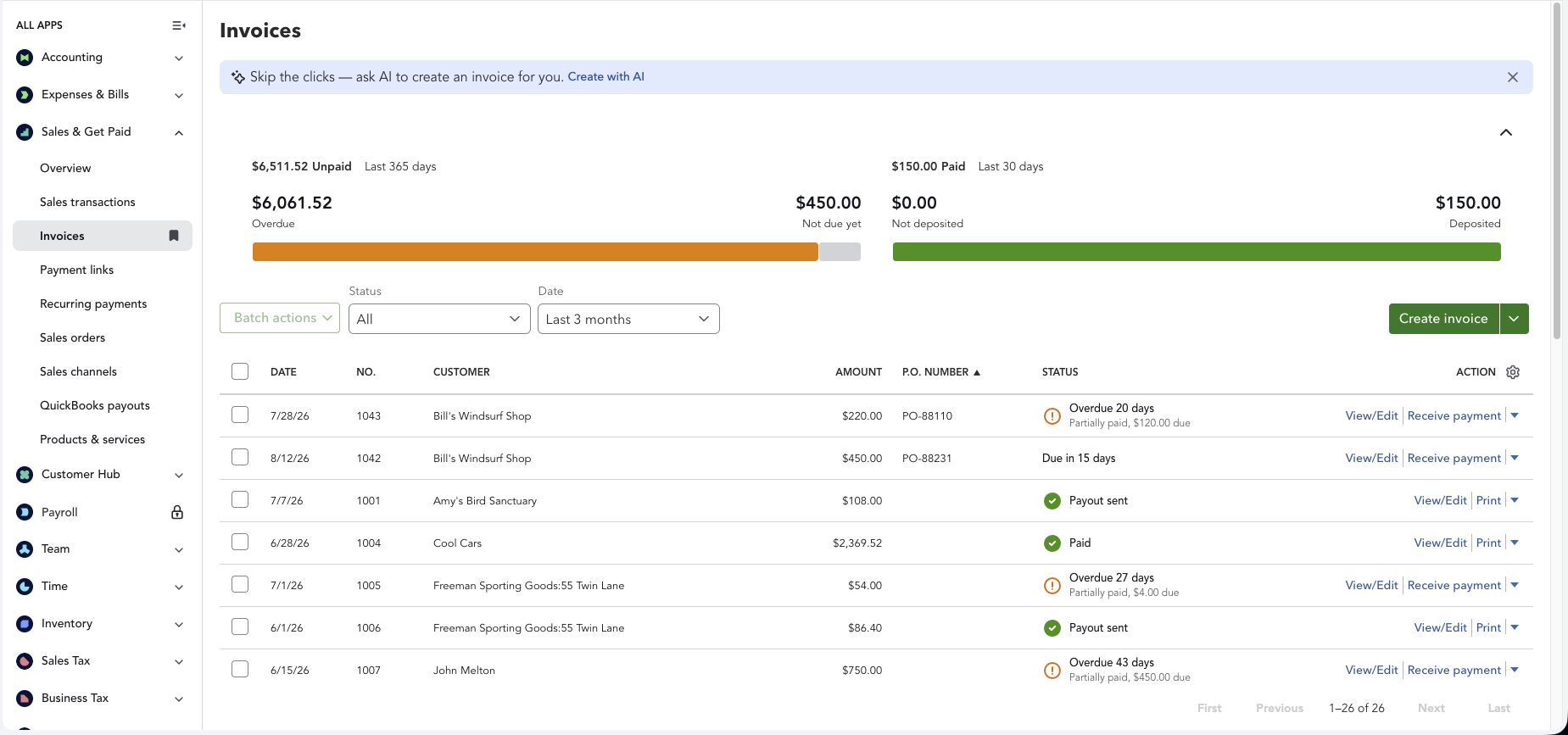
P.O. Number. QuickBooks Online has no purchase order field on an invoice. If your customers issue P.O.s, this is almost always the first custom field a company adds, and the one their AP contacts ask for.
Job, site or project reference. For anyone billing against a site rather than a company — construction, field service, facilities.
Sales rep. A dropdown, on any plan. On Advanced you can then group a sales report by it.
Delivery method or ship via. Four or five dropdown options, printed on the form so the warehouse and the customer read the same instruction.
Tax or VAT registration number. On Advanced, this belongs on the customer profile rather than the transaction, so it is entered once. On Essentials or Plus it has to be a transaction field, and it will cost you one of your four.
Mistakes worth avoiding
Renaming a live field. Intuit's guidance is that any edit you make applies to all forms that use the field. Treat a rename as global rather than forward-only, and settle on the name before you start filling the field in.
Deleting instead of deactivating. QuickBooks does not really delete a custom field; you make it inactive, which preserves the values on historical transactions while keeping the field off new forms. To bring one back, turn on the Include inactive switch on the Custom fields page, then select Make active.
Assuming everything you collect will print. On Advanced the cap is three per form type. If a fourth field needs to be visible to the customer, something else has to come off the form.
Expecting a custom field to reach a line. It attaches to the transaction, not the line. Per-line information belongs in the description.
Building a process on Simple Start's single field. One field, and it has to be a dropdown. If custom fields matter to how you invoice, Essentials is the realistic floor and Advanced is where they become useful.
When the field exists but the document won't show it
Everything above is about getting data into QuickBooks. The recurring frustration is the other direction: the value is recorded correctly and the document you need to send won't display it.
That is what we built Missing Toolkit: Templates for. You upload an ordinary Word document as a template, put ${CUSTOM_PO_NUMBER} wherever the number belongs, and generate the finished document from live QuickBooks data. Every custom field on the record becomes a placeholder automatically, with no mapping step — including dropdown fields, which resolve to the option's display text rather than an internal ID. Customer and vendor profile fields come through the same way.
It matters most on customer statements, where QuickBooks gives you no field of your own: a statement built from your own template can carry the P.O. number against each invoice, alongside aging buckets and your own letterhead. The placeholder documentation lists what is available, and there is a 30-day trial with no card if you want to point it at your own books and see.
Frequently asked questions
How many custom fields can I have in QuickBooks Online?
One per transaction on Simple Start, four on Essentials and Plus, and twelve per form type on Advanced. Advanced also allows twelve per profile type on customer, vendor and project records, counted separately; the lower plans have no profile fields at all. On Advanced, only three custom fields per form type can be set to print on the document.
Can I add a custom field to a line item?
No. Custom fields attach to the transaction header, not to individual lines, and Intuit's support team confirms there are no custom fields for products. The line-item description is the only per-line free text QuickBooks Online offers.
Why doesn't my custom field appear on the customer statement?
QuickBooks Online statements cannot show custom fields — Intuit's support team confirms that a P.O. number on a customer statement is not available. Their suggested workaround is to also enter the value in the invoice's Memo field, which does print on the statement beside the invoice number.
Can I run a report filtered by a custom field?
Filtering, grouping and adding custom fields as report columns requires QuickBooks Online Advanced. On the lower plans, custom field values still appear in a defined list of standard reports — Open Invoices, Invoice List, Customer Balance Detail and others — but cannot be used as filters or columns.
Are dropdown custom fields only available on Advanced?
No. Dropdown lists are available on every plan, including Simple Start, where it is the only data type on offer. Number and date fields are the Advanced-only types.
What happens to old transactions if I rename or deactivate a custom field?
Intuit's guidance is that an edit applies to all forms using the field, so treat a rename as global. Deactivating leaves the values intact on existing transactions and removes the field from new forms; you can make it active again later from the Custom fields page.
Can I add a purchase order number field to an invoice?
Yes, as a custom field — QuickBooks Online has no built-in P.O. field on an invoice. Create a Transaction custom field named P.O. Number, tick Invoice under Select forms, and turn on Print on form.
Intuit and QuickBooks are registered trademarks of Intuit Inc. Used with permission.