
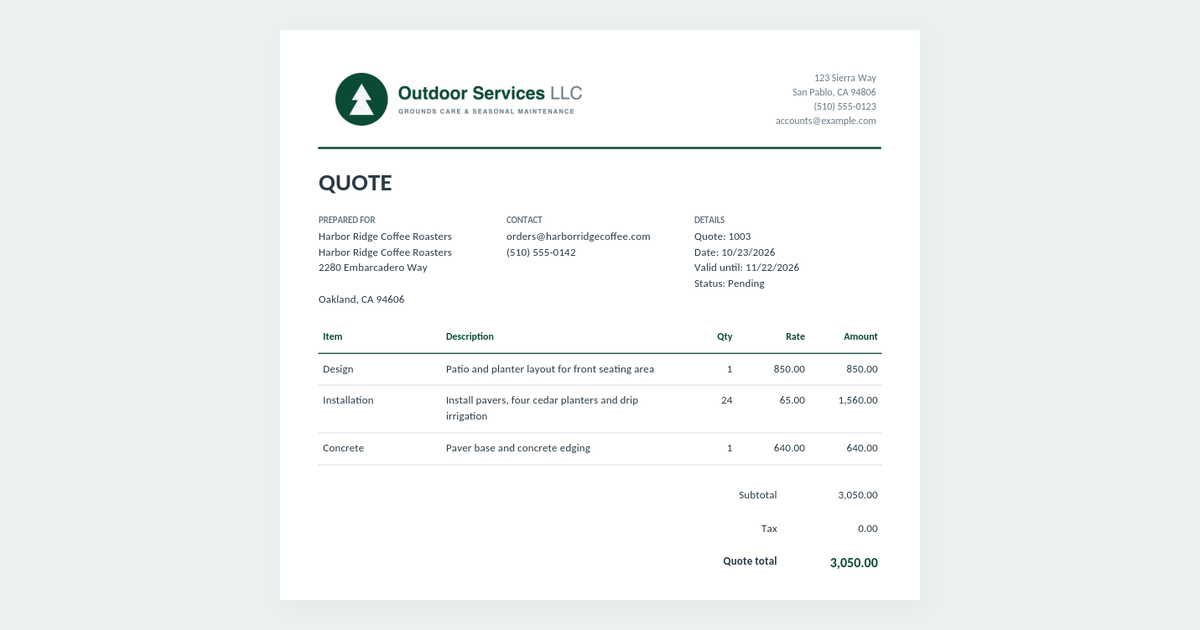
Your customers ask for a quote. Maybe your trade calls it a quote, or in your country an estimate and a quotation mean different things. QuickBooks Online has a form called an Estimate, and no form called a Quote.
There is no separate quote form in QuickBooks Online. A quote is an estimate with a different name printed on it. You change that name in a custom form style, and the PDF your customer receives says "Quote." Plenty of other places still say "Estimate", though, including some your customer sees. This guide shows how to set up the quote, exactly where the word Estimate stays, and what to do if that matters for your business.
Quote vs. estimate: does the name matter?
To QuickBooks they're the same record. To your customer they may not be. In many trades, a quote is a fixed price for a defined job, while an estimate is a best guess that can change. Some customers won't raise a purchase order against an estimate. Whether the difference is legal or just expected, the document needs to say what you mean.
QuickBooks lets you rename the estimate form, which covers the main thing: the document itself. It doesn't let you rename the transaction, so the word Estimate stays everywhere else.
Step 1: Create a Quote form style
- Select Settings (the gear icon), then Custom form styles.
- Select New style, then Estimate.
- On the Design tab, change the style's name at the top to Quote, so you can find it later.
- Select the Content tab, then select the top section of the form preview (your company name and address).
- Under Form, make sure Form names is ticked, and change the Estimate box to Quote.
- Select Done.
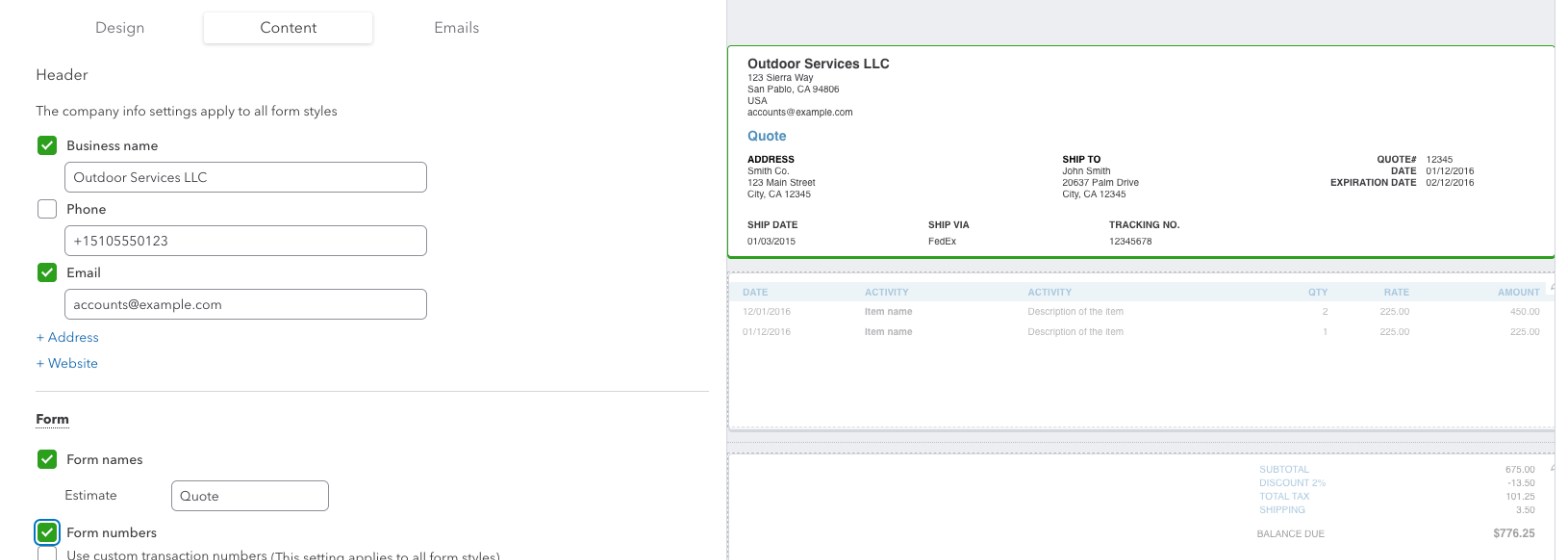
The preview changes straight away: the title reads "Quote", and the number label becomes "QUOTE #". Nothing else about the form changes. You still have the same columns, totals and layout as the standard estimate.
Step 2: Use the Quote style on an estimate
Create or open an estimate as usual (+ Create, then Estimate). Then pick the style:
- In the Manage estimate panel on the right, open Design.
- Under Other templates, select Quote.
- Select Save.
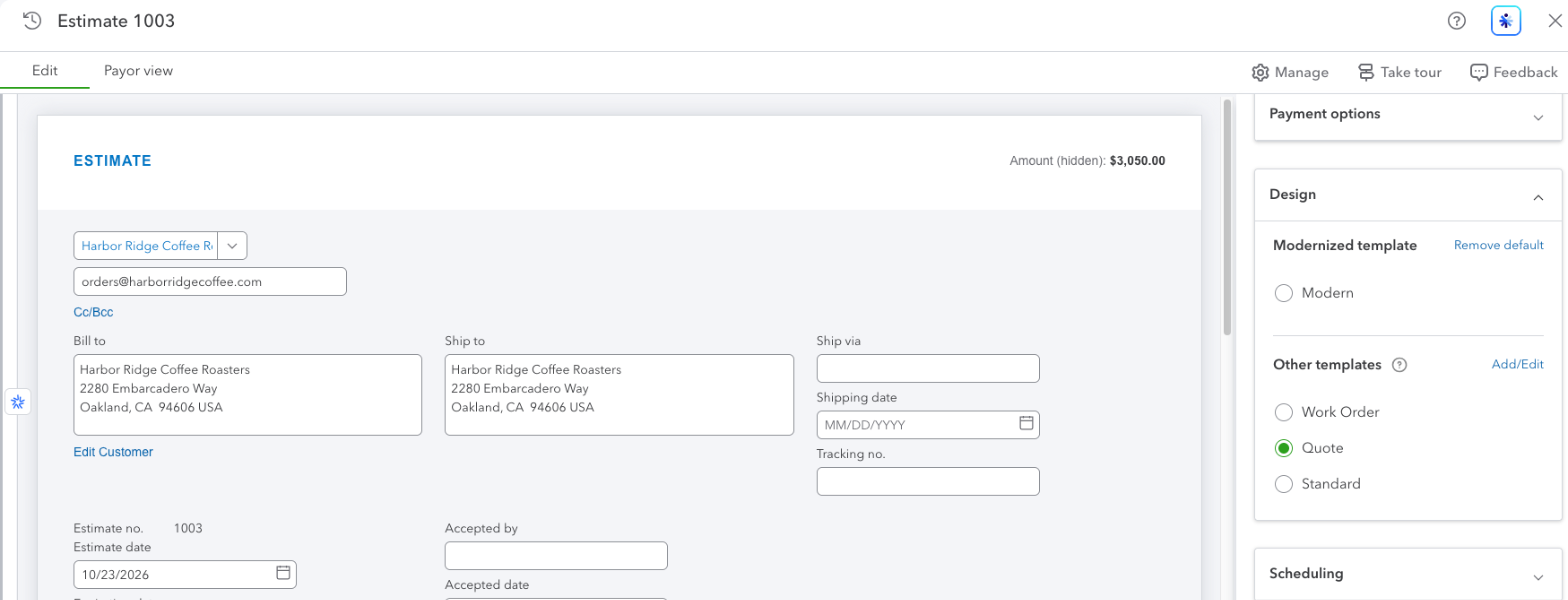
The screen won't change. The page is still titled "Estimate 1003", the form still says ESTIMATE, and the number is labeled "Estimate no." That's expected. QuickBooks shows a note that the onscreen form is laid out for entering data, and that there's "no change to your PDF and email" from that layout. Your style is what shapes the PDF and email. The style only affects what the customer gets.
New estimates start on QuickBooks' own modern template, so you'll need to pick Quote each time. If you'd rather make Quote the default, the Custom form styles page says to choose Remove default next to the modern template first. It also notes that a template you mark as default there is "view only for invoicing and estimates", so try it on a test estimate before you rely on it.
Step 3: Check the PDF before you send it
Select Print or download, then Download, and open the file.
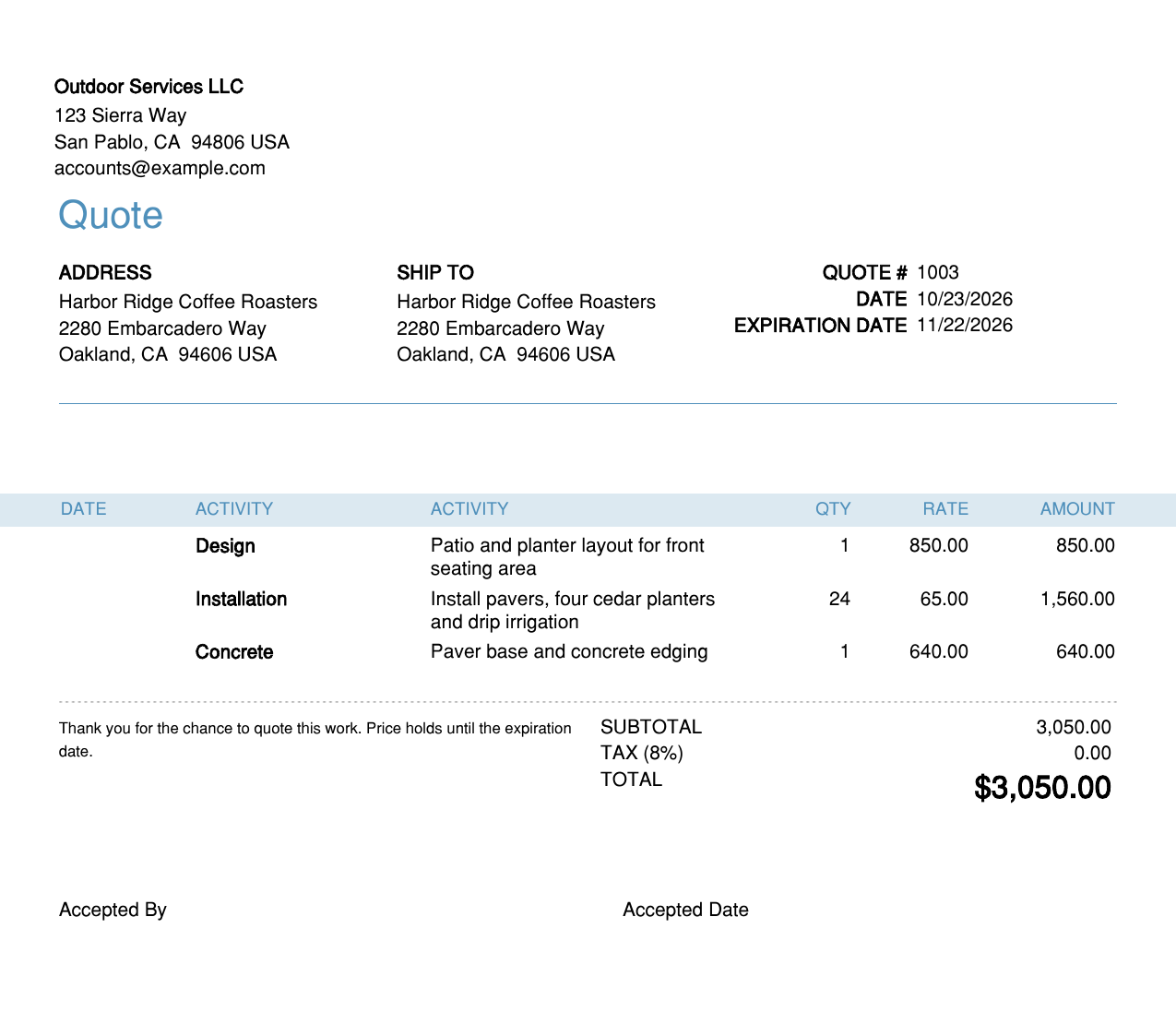
This part works. The title reads "Quote", the number is "QUOTE # 1003", and the expiration date, lines and total all print as normal. At the bottom, QuickBooks adds "Accepted By" and "Accepted Date" lines for the customer.
Where it still says Estimate
The form name only changes the document. Everything around it still uses QuickBooks' word. Here's what we found in a US QuickBooks Online company in October 2026:
| Where | What it says | Can you change it? |
|---|---|---|
| The printed or emailed PDF | Quote | Yes, that's the form style |
| The downloaded file's name | Estimate 1003.pdf |
Rename it yourself before attaching |
| Email subject (default) | "Estimate from [your company]" | Yes |
| Email message (default) | "Please review the estimate below…" | Yes |
| The attachment label and Send button | "Estimate PDF", "Send estimate" | No |
| The summary block in the email | "Estimate Summary", "Estimate #" | No, per Intuit's support team |
| The screen you work on | Estimate | No |
| Reports and transaction lists | Estimate | No |
To change the email wording for every estimate, go to Custom form styles, edit your Quote style, and open the Emails tab. Change the Subject (for example, "Quote from Outdoor Services LLC") and the Message to customer. Both say they apply to all estimates, not just this style, so word them to suit every estimate you send. You can also change the subject and message on the send screen for a single quote.
For the file name and the email summary, Intuit's support team has confirmed in its community that both are generated by the system and can't be changed. Their suggested workaround is to download the PDF, rename it, and send it from your own email. That also gets rid of the "Estimate Summary" block, because your customer only sees the email you write.
If a customer has ever replied "this says estimate, we need a quote," the email and file name are usually why.
Option 2: Send the quote from your own Word template
The renamed estimate fixes the title, but it's still the estimate form with a different word on top. A quote that wins work usually carries more than a price list: the scope written out, what's excluded, how long the price holds, deposit terms, and a place to sign.
The QuickBooks form style has no room for a terms page or a signature block. That's why many businesses keep a quote template in Word and copy the numbers in from QuickBooks:
- Open the estimate in QuickBooks so you have the customer, lines and total in front of you.
- Copy them into your Word quote template.
- Save it as a PDF named the way you want, for example
Quote 1003 - Harbor Ridge.pdf. - Email it yourself.
Download our free quote and estimate template. It's a Word document with the customer block, a table of quoted lines, totals, a terms paragraph and acceptance lines for the customer to sign. The heading says "Estimate"; type Quote over it, and over the "Estimate:" and "Estimate total" labels, and it's yours. Then delete the placeholder codes and type over them.
This takes a few minutes per quote. For two or three a week, that's fine. For a busy sales desk, the retyping is where mistakes creep in.
Which should you use?
| If you want… | Use |
|---|---|
| "Quote" on the PDF, with no extra work | Step 1, the form style |
| No mention of "estimate" anywhere the customer looks | The form style, plus your own email and a renamed PDF |
| Terms, scope and a signature block | A Word quote template |
Frequently asked questions
Does QuickBooks Online have a quote form?
No. QuickBooks Online uses estimates for quotes, bids and proposals. You rename the estimate in a custom form style so the document your customer gets says Quote.
Why does my estimate still say Estimate after I renamed it?
The form name only changes the PDF and the emailed copy. The screen you enter the estimate on, the transaction lists and the reports always say Estimate. If the PDF also still says Estimate, check that the estimate is using your Quote style under Design, then Other templates.
Can I change "Estimate" in the email to my customer?
Partly. The subject line and message are yours to edit, in the Emails tab of the form style or on the send screen. The attachment label, the summary block under the message and the PDF's file name are generated by QuickBooks and can't be changed.
Will converting a quote to an invoice still work?
Yes. It's still an estimate as far as QuickBooks is concerned, so you can convert it to an invoice, track whether it was accepted and run estimate reports as normal.
Can I have both a Quote and an Estimate style?
Yes. Keep the standard style for estimates and pick the Quote style on the estimates that are quotes. Just remember that the email subject and message are shared by both, so keep them neutral, or change them on the send screen.
Sending quotes every week? Missing Toolkit: Templates fills your own Word quote template from any QuickBooks Online estimate: your heading, your terms, your signature block, and every line and total read straight from QuickBooks. Free 30-day trial, no credit card