
Until now, one QuickBooks record made one document. This update is for the paperwork that has to travel with a job or a shipment. You can now fill a template once for every line item, make a label for every box, and send a document straight to your printer without downloading it first. All three are part of the Pro plan.
A copy for every line item
Some documents belong to a single line rather than the whole record. Five lines on an estimate can mean five jobs, and each job needs its own work order to travel with the part.
Open a template's settings and set Copies to One copy per line item. When you generate from a record, tick the line items you want. The whole template is filled once for each one, with that line's details alongside the customer and record details. The copies come back together in one Word file or PDF, one per page.
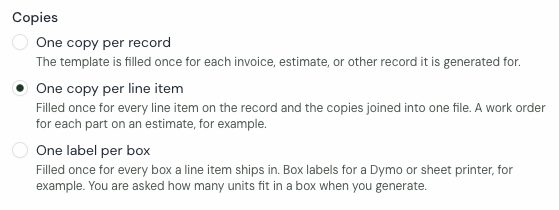
It works on invoices, estimates, purchase orders and any other record with line items. The line item placeholders you already use, such as ${LINE_DESCRIPTION} and ${LINE_QUANTITY}, fill with the one line that copy is for.
A label for every box
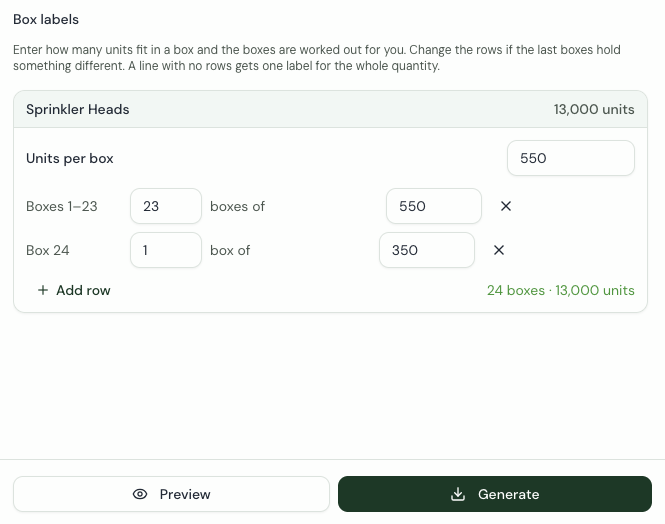
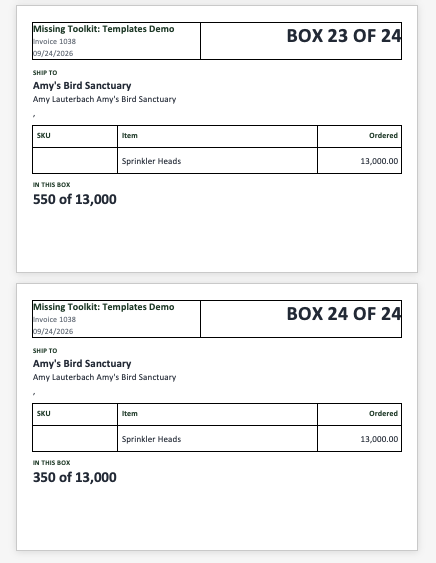
Set Copies to One label per box and the template is filled once for every box a line item ships in. Four placeholders do the counting: ${BOX_NUMBER}, ${BOX_COUNT}, ${BOX_QUANTITY} and ${BOX_TOTAL_QUANTITY}. Together they print "Box 3 of 24" and "550 of 13,000".
When you generate, enter the Units per box for each line. 13,000 envelopes at 550 a box become 23 boxes of 550 and one of 350, and you can see the numbering before you generate. You can change any row, remove one, or use Add row when the last boxes are packed differently. Service lines start unticked, since a service doesn't ship in a box.
Every label for every line lands in one file, grouped by line item and numbered within it. Size the page in Word to fit your label stock. A free 4 × 6 inch box label starter template for a Dymo shipping label will get you going.
Box labels are made one record at a time, so they aren't offered in batch runs or schedules.
Print straight to your printer
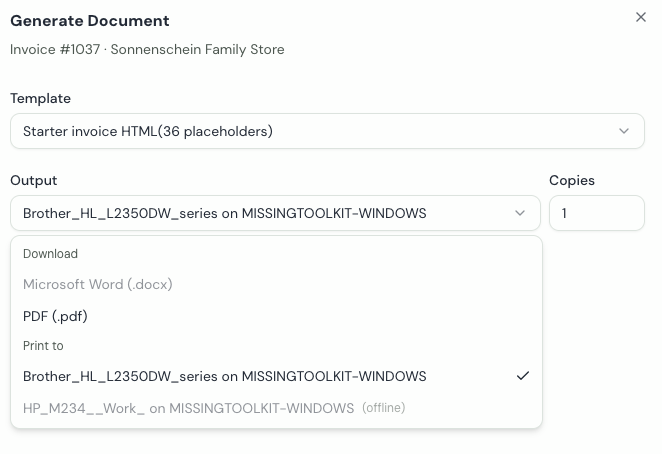
Once your team connects PrintNode, your printers show up in the Output menu under Print to, below Word and PDF. Pick a printer, set Copies, and click Generate & Print. The PDF goes to the printer, and there's nothing to download or open. A notification follows the job until it has been sent to the printer, and it carries a link to the PDF in case you need a copy.
The team owner sets it up once:
- Create a free account at printnode.com. The free plan covers 50 prints a month on one computer.
- Install the PrintNode client on the computer your printer is attached to.
- Create an API key in PrintNode. Paste it into Team > Integrations under Apps, then click Connect.
A set of per-line copies or box labels is sent as one print job, so 24 labels count as one print against your PrintNode allowance. To print a document again later, open it from Documents and use the Printing card.
You can also print from our Chrome extension while you're looking at a record in QuickBooks Online.
Where to read more
- Template copies: per record, per line item, or per box
- Box labels: how the boxes are worked out, and the placeholders
- PrintNode: connecting, printing, and what each print state means
If anything doesn't work the way you expect, let us know through the help page.