
You can now list every sale in a period as one file, in your own columns. Templates can also be CSV files, and any placeholder can change how it prints without a trip back to Word.
Every sale in a period, in your own columns
A sales register lists every invoice, sales receipt and credit memo in a period, one row per document, in a template you lay out yourself. Credit memos are subtracted, so the totals are what you actually sold. Make it a CSV file for your accountant or a sales tax review, or a Word or PDF report for your own records.
Open your QuickBooks connection and choose Sales Registers. Pick last month, last quarter, this month or your own dates, and tick the kinds of document to include. Before you download, the page shows the period's document count, subtotal, tax and total, and warns you about:
- documents with no number, or a number used twice
- documents in another currency, converted to your home currency at each document's own rate
- a column your template prints that's blank on some rows, such as a customer with no tax ID
- a placeholder your QuickBooks company can't fill, such as a custom field you haven't created
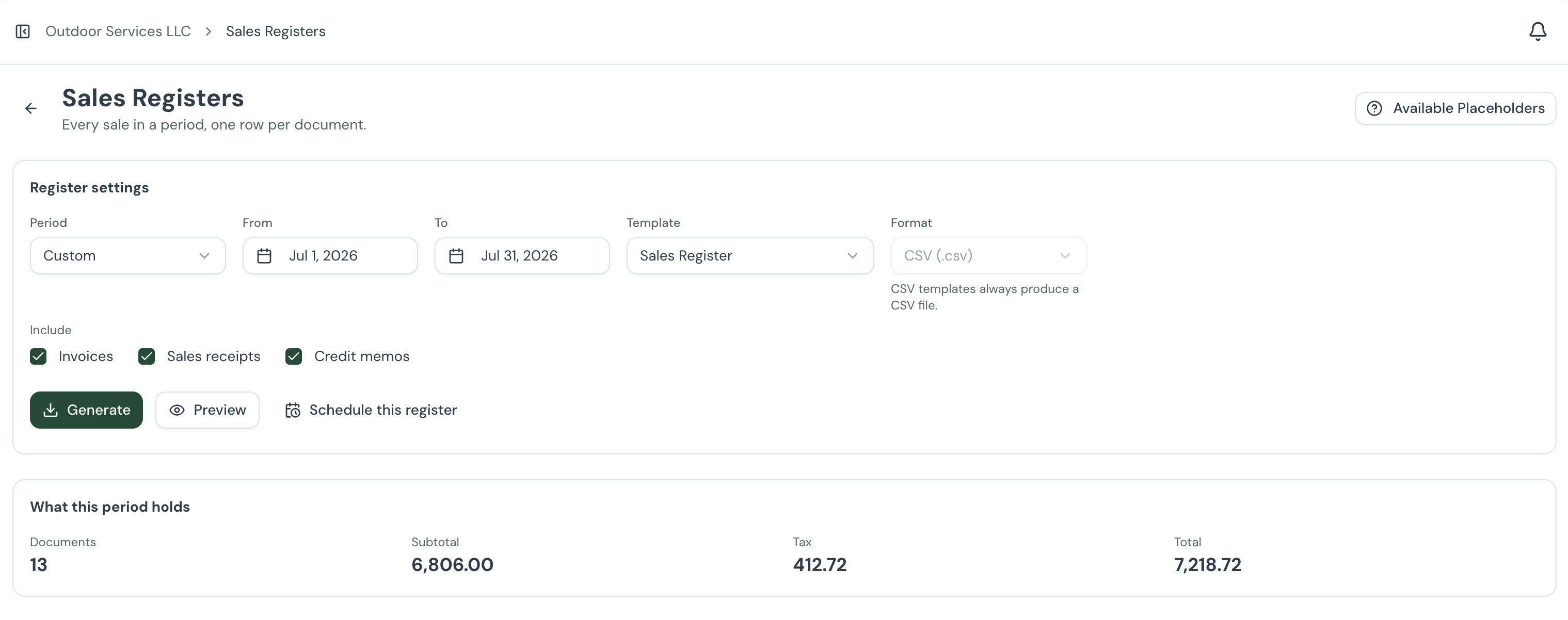
Each row can show the document's date, number, customer and tax ID, amounts and currency, plus any custom fields you keep on your sales or your customers, under the headings you choose. A free CSV starter on the sales register page gets you going.
Generating a register yourself works on every plan. On the Advanced plan, it can also run by itself every month or every quarter, and you get an email with a link to the file. Nothing is sent to your customers. Quarterly is a new option for any schedule. It runs in January, April, July and October, straight after each quarter ends.
Your company's tax ID. QuickBooks doesn't share your company's tax number with apps, so Team settings now has a Tax ID field. Type it once, and it prints wherever a template uses ${COMPANY_TAX_ID}, on documents and in file names.
Templates can be CSV files
A template can now be a CSV file as well as a Word document. Build it in Excel with a header row and one row of placeholders, save it as CSV, and upload it. When you generate, the header row is written once, and the placeholder row repeats for every line: every line of an invoice, or every document in a register. Any row below it, such as a totals row, is written once at the end.
Use it for an import file for your warehouse, shipping or payroll system, a tax schedule that needs exact column headers, or a spreadsheet your accountant can open straight away.
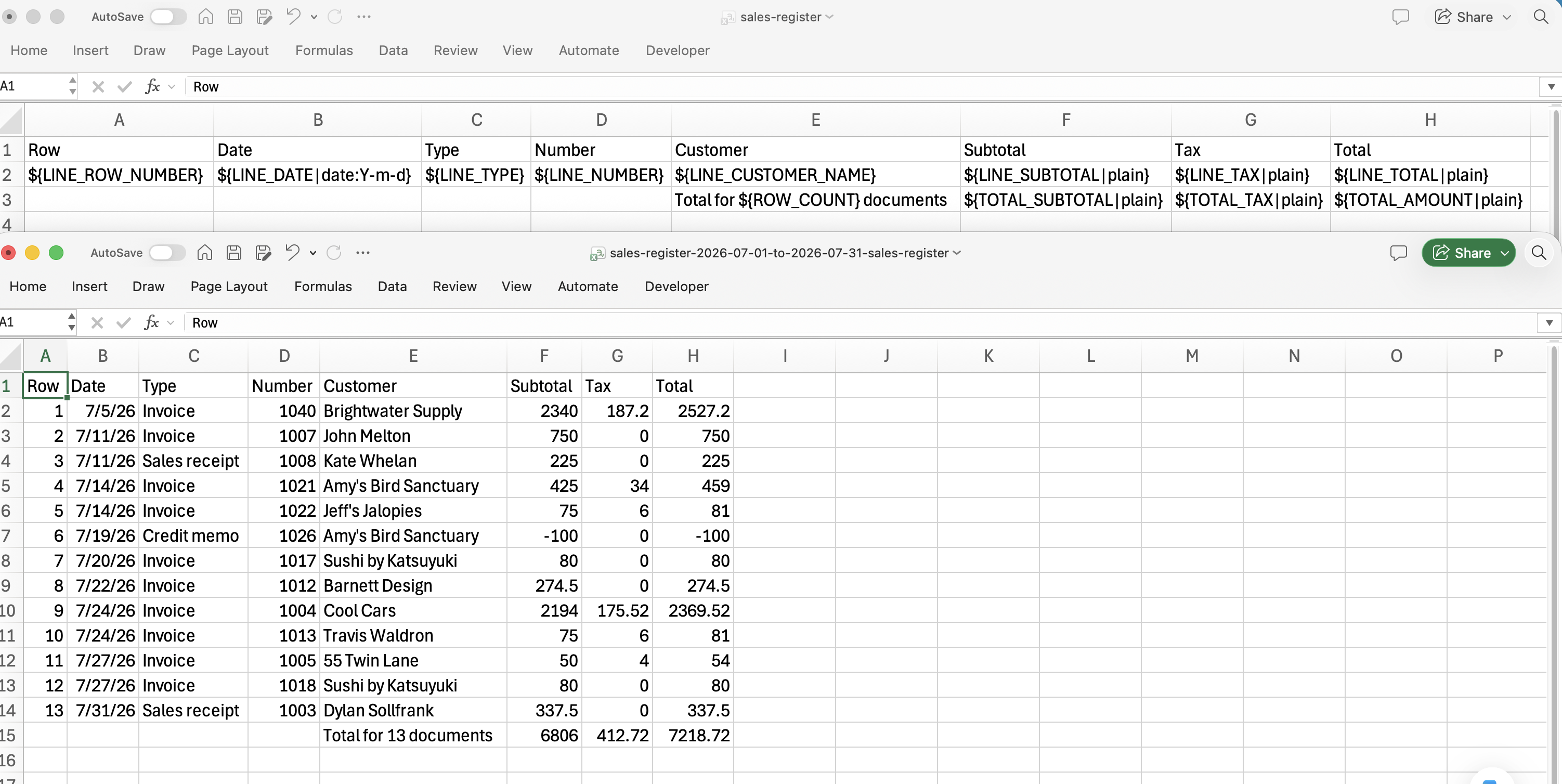
CSV templates go through the same four upload steps as Word templates, and work one record at a time, in batch runs and on schedules. The file keeps your template's own separator, comma or semicolon. Values that look like spreadsheet formulas are neutralized, so a customer name beginning with "=" can't do anything when the file is opened in Excel.
Name your files. Any template, Word or CSV, can now set the name of the file it makes. When you upload or edit a template, open Advanced and fill in File name. ${INVOICE_NUMBER}-${CUSTOMER_NAME} gives 1043-Harbor Ridge Coffee Roasters.csv. Leave it blank and files are named as before.
A tip about Excel. Excel hides trailing zeros when it opens a CSV, so 290.40 shows as 290.4 even though the file says 290.40. If you open the file and save it again, Excel writes what it shows. For a file headed to another system, upload the downloaded file as it is.
Format any placeholder, right in the template
A placeholder can now change how its value prints. Add a filter after a | inside the placeholder, and the same template works for every record:
${TOTAL_AMOUNT|words}prints "One thousand two hundred thirty-four and 56/100", the way a check does${INVOICE_DATE|date:F j, Y}prints "October 3, 2026"${TOTAL_AMOUNT|plain}prints "1234.56", with no commas, for imports${CUSTOMER_NAME|upper}prints "ACME SUPPLY"${CUSTOM_PO_NUMBER|default:N/A}prints "N/A" when the field is blank
There are also filters for rounding, dropping a minus sign, padding with zeros and shortening long text, and amounts in words in rupees, pounds and Australian dollars.
You don't have to type any of them. On the template page, open the menu next to a placeholder and choose Format…. Pick from plain choices such as Round to, In words, Date format, Case and When blank, print, check the live preview, and copy the finished placeholder into your template. Open it from a record and the preview uses that record's real value.
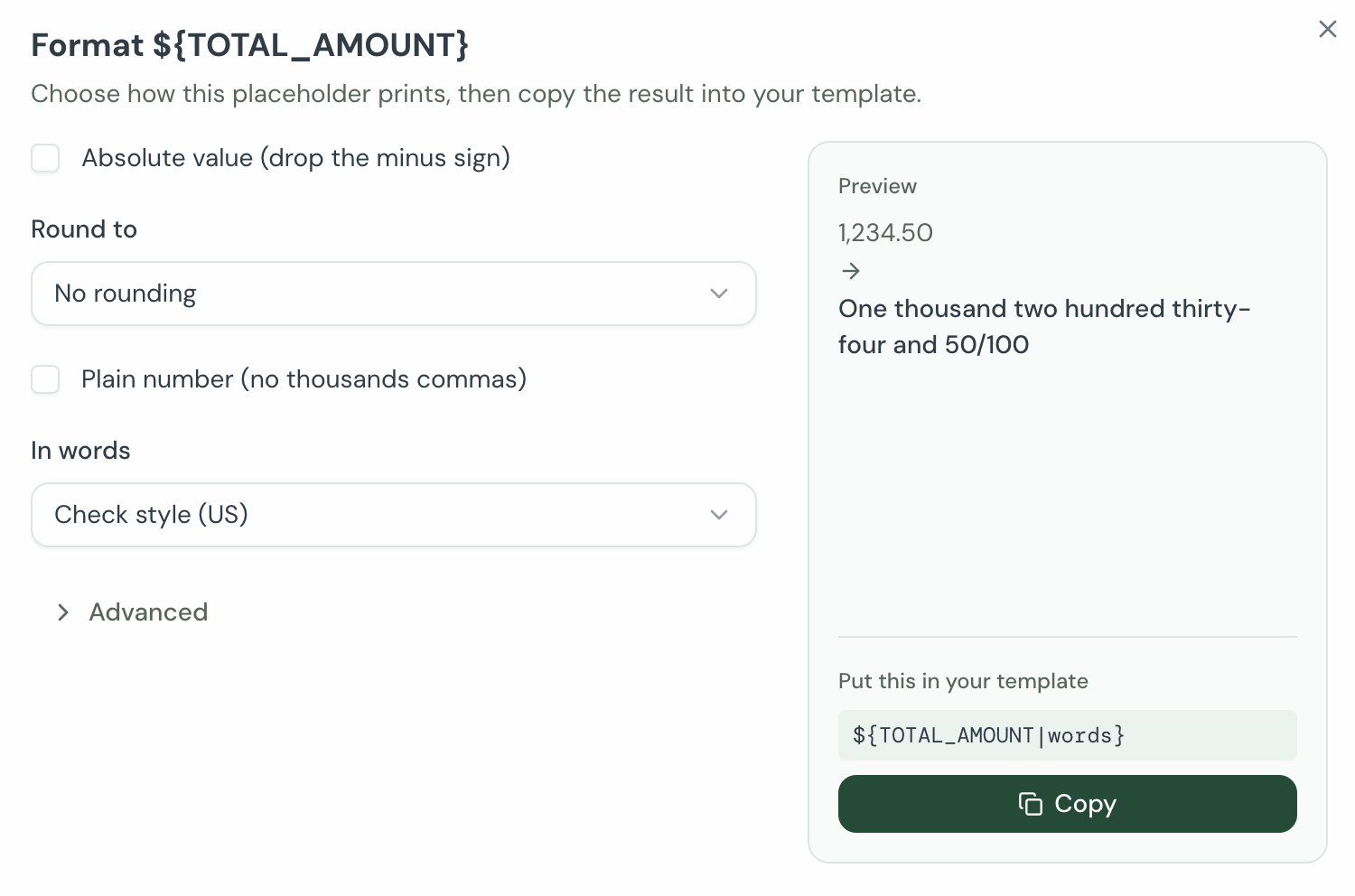
Filters work in Word, designed and CSV templates, and in file names. If you misspell one, or use one that doesn't fit the value, the upload checks tell you and suggest the right one.
Where to read more
- Sales register: periods, checks and columns
- Scheduling a register: monthly and quarterly runs
- Tax ID: where it prints
- CSV templates: building one in Excel
- Placeholder filters: every filter, with examples
If anything doesn't work the way you expect, let us know through the help page.